Improvements to layouts in Google Meet

Quick launch summary

We’re making some changes in Meet to ensure you can better see who, and what, you need to see in your meetings. We hope that these improvements help remote meetings feel more like in-person meetings.

Tiled view with presentations
We recently announced tiled layout in Meet, where you can see up to 16 other participants in your meeting. We’re now making improvements to that layout to allow you to see other attendees even when someone is presenting. Presentations appear in a large tile, with the most active participants to the side or bottom.

Saved layout preference
When you choose a new layout, this layout will be automatically saved as your preferred layout. This means it will be automatically applied for your future meetings, until you select a new one.

Additional UI improvements
We’ve made some minor improvements to the meeting UI to better utilize the space on your screen.

Getting started


Admins: There is no admin control for this feature.

End users: To learn more about the different layout options in Meet, check out the Help Center

Rollout pace

  • This feature is available now for all users.

Availability

  • Available to all G Suite customers and users with personal Google Accounts

Resources

[ad_2]

Net Universe offers all Google devices with worldwide Delivery Services.
Send us an email to [email protected] for more information or visit https://www.netuniversecorp.com/google.
You can visit our Shop Online


New comment interface for Google Docs, Sheets, and Slides on Android

What’s changing 

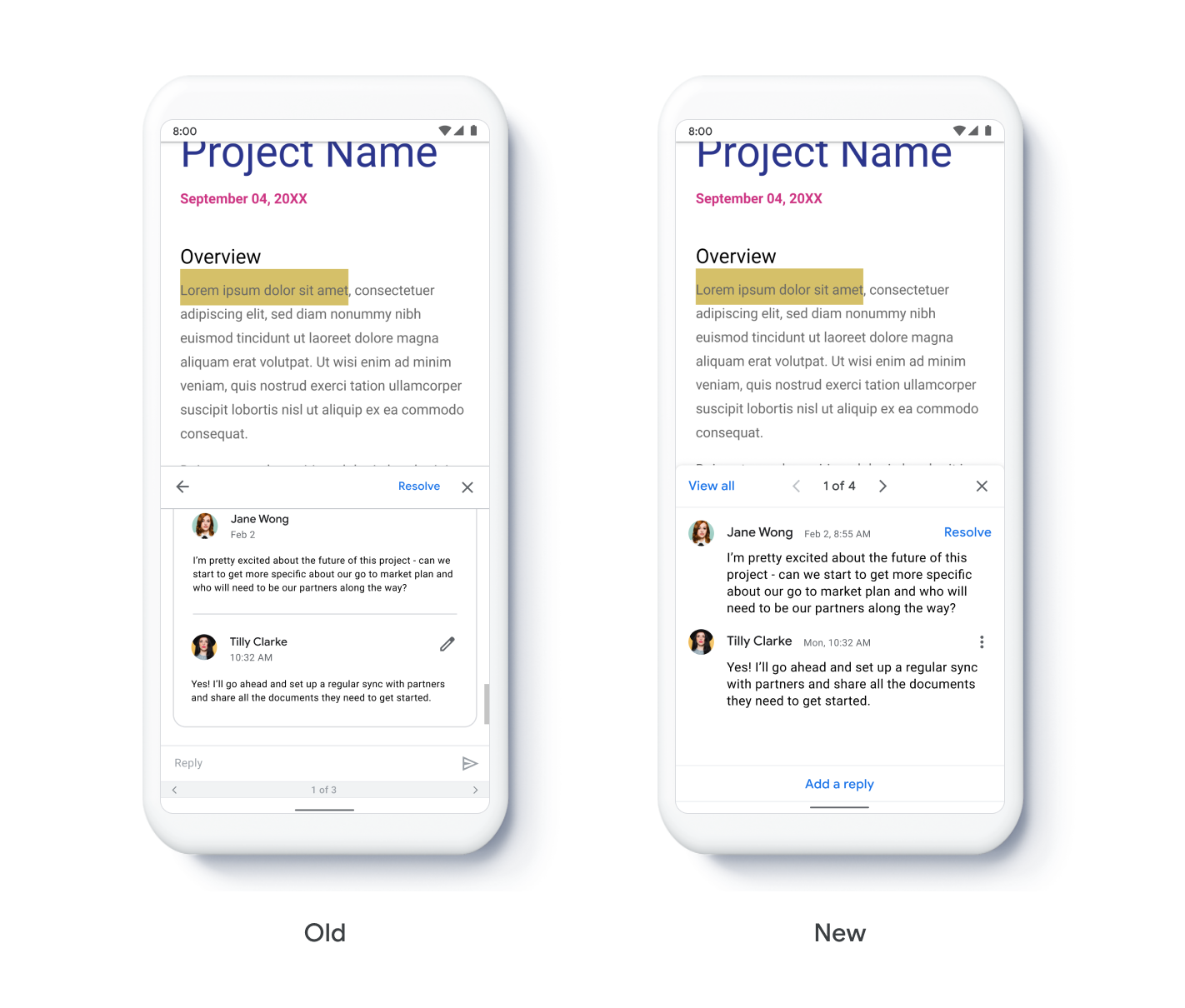
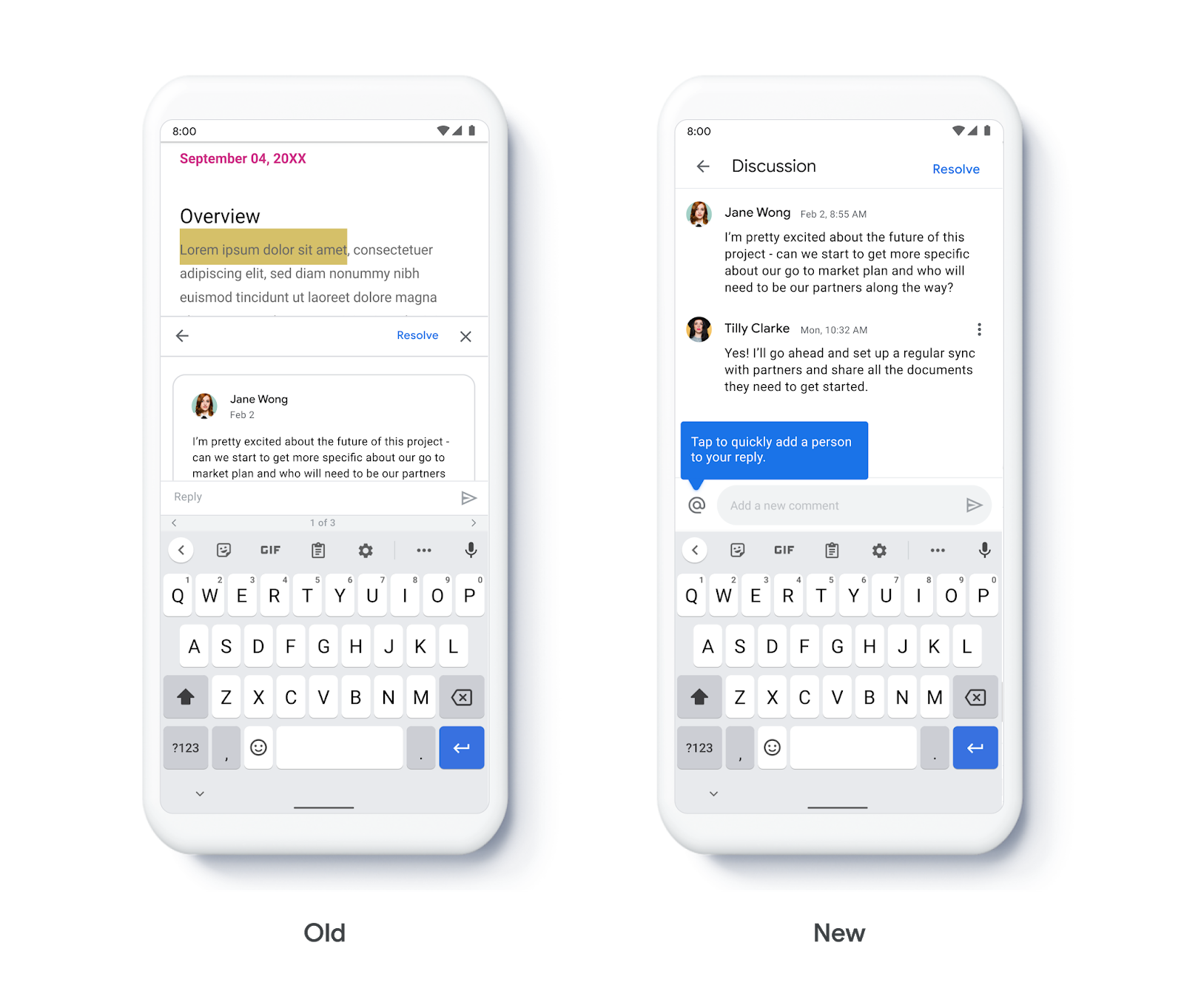
We’re updating the user interface for comments and action items in the Google Docs, Sheets, and Slides apps for Android. Some of the changes you may notice include:

  • Larger, clearer interface to make it easier to see comments and their context in a document. 
  • Shortcuts and gestures to help you quickly scroll through and respond to multiple comments. 
  • Quick access button to reply, “@” mention someone, and assign action items. 

Who’s impacted 

End users

Why it matters 

Commenting is a powerful way to collaborate on documents while remote. Comments can help you ask questions, document discussions, make sure other users see something, assign action items, and more. They’re particularly useful when working remotely, enabling multiple users to be part of discussions whenever and wherever it’s convenient for them.

Getting started 

  • Admins: There is no admin control for this feature.
  • End users: This feature will be ON by default. To get started, tap on a comment when using the Docs, Sheets, or Slides app on an Android device. Use the Help Center to learn more about using comments and action items on Android. 

Rollout pace 

Availability 

  • Available to all G Suite customers and users with personal accounts. 

Resources 

[ad_2]

Net Universe offers all Google devices with worldwide Delivery Services.
Send us an email to [email protected] for more information or visit https://www.netuniversecorp.com/google.
You can visit our Shop Online


New document save status and offline indicator for Docs, Sheets, and Slides

Quick launch summary 

We’re updating the interface which tells users about the file save status and whether they’re working online or offline in Google Docs editors and Drawings. The changes will help users understand where the file is saved, whether they’re connected to the network, and if the file is available to edit offline.

This is an update to the interface only – there are no changes in the underlying functionality. The changes you may notice include:

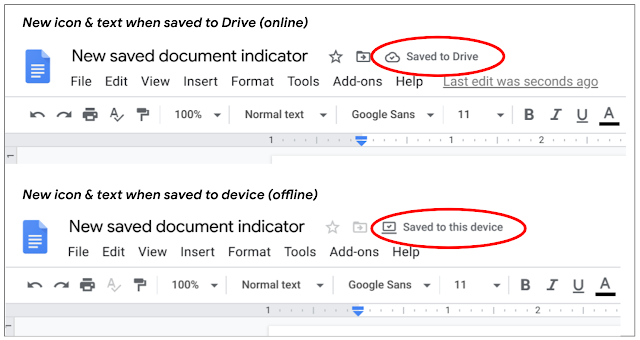
  • A new location for document save status next to the document name. 
  • More descriptive text to indicate whether a document is saved to the cloud (when online) or to the device (offline). 
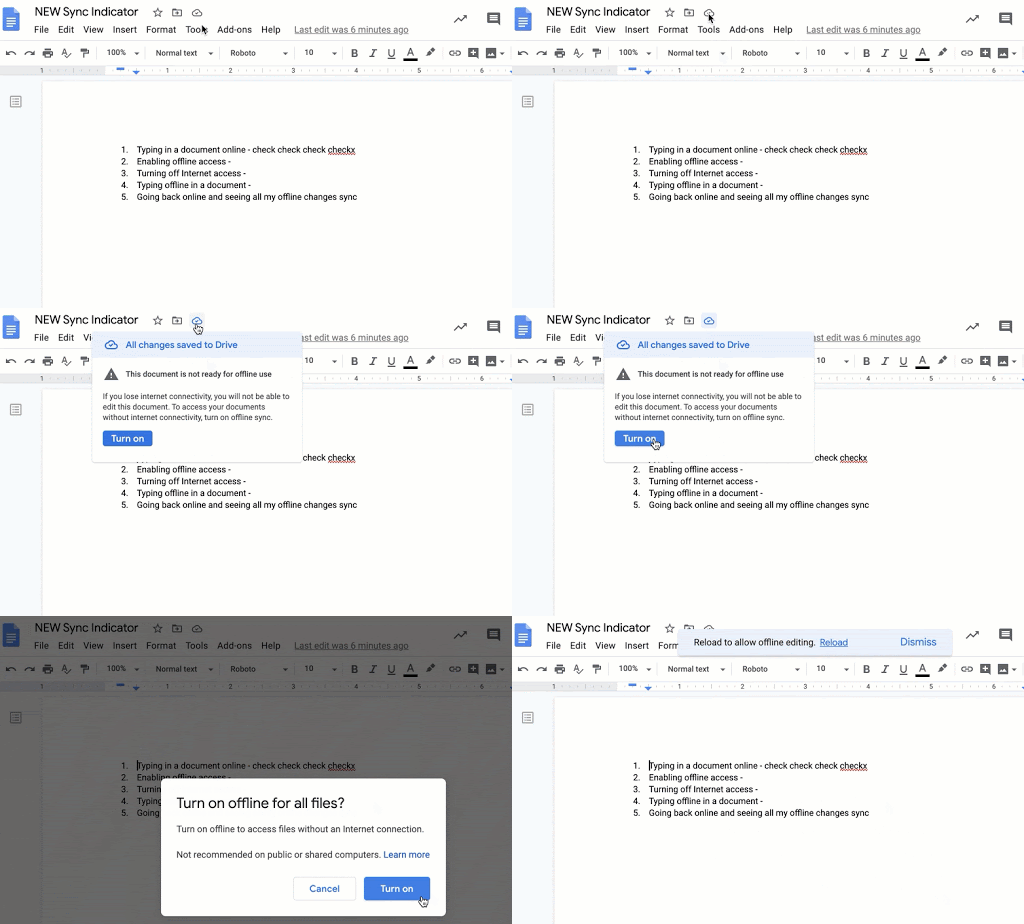
  • A new way to enable offline by clicking on the document status icon. Previously, you had to go to File > Make available offline

For users in domains where admins have turned off Docs editors offline access, we will adjust the message shown to users in order to minimize confusion regarding settings controlled by their admin. 

See images below for more details.

Getting started 

The saved file indicator is now next to the document name and features more descriptive text 

You can enable offline by clicking the document status icon 

Rollout pace 

Availability 

  • Available to all G Suite customers and users with personal Google Accounts. 

Resources 

[ad_2]

Net Universe offers all Google devices with worldwide Delivery Services.
Send us an email to [email protected] for more information or visit https://www.netuniversecorp.com/google.
You can visit our Shop Online


Use group-based controls for LDAP client access permissions

Quick launch summary 

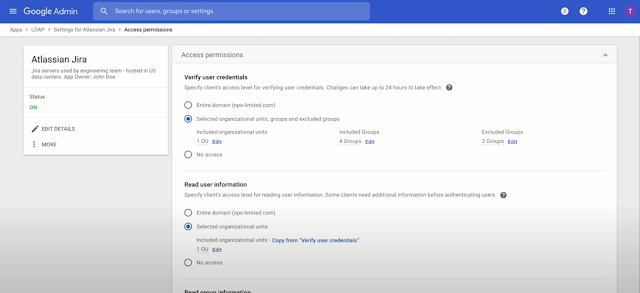
You can now configure the access permissions for an LDAP client by group. Previously, controls were only available at the organizational unit (OU) level.

LDAP clients are in the secure LDAP service, which enables users to access traditional LDAP-based apps and IT infrastructure using their G Suite credentials. This new feature allows you to allow or prevent specific groups of users from signing in to an application. This can help you make sure only appropriate users are able to access and use specific applications.

Group-based controls for LDAP clients in the Admin console 

Getting started 

Rollout pace 

Availability 

  • G Suite Enterprise, G Suite for Education, G Suite Enterprise for Education, and Cloud Identity Premium customers 
  • Not available to G Suite Basic, G Suite Business, G Suite for Nonprofits, and Cloud Identity Free customers 

Resources 

[ad_2]

Net Universe offers all Google devices with worldwide Delivery Services.
Send us an email to [email protected] for more information or visit https://www.netuniversecorp.com/google.
You can visit our Shop Online


API client access, GSM apps, admin roles, domain management, and unmanaged users

We’ve made several updates to the Admin console interface. Specifically, we’ve:

  • Streamlined the API client access page 
  • Improved and expanded the G Suite Marketplace apps (GSM) settings 
  • Made it easier to manage admin role assignments 
  • Created a new interface for domain management 
  • Updated the unmanaged users and consumer account invite section 

See below for more details on each of these changes.

Streamlined the API client access page 

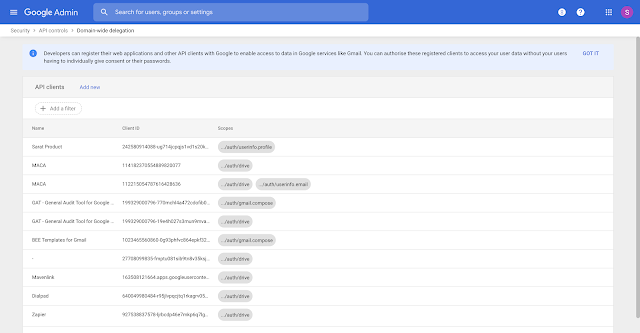
The API client access page helps you grant API access to internal or 3rd-party apps, especially those using service accounts, on behalf of your users. We’ve created a simpler view of all apps that are authorized for domain-wide delegation and all authorized scopes, with service account and app name details. Updates to this view include:

  • A new location for the page. It’s now found at Security > API Controls > Domain-wide Delegation. It was previously at Security > Advanced settings
  • Improved interface, with more information and clearer UI, which makes it easier to see, understand, and manage apps and scopes. 
  • Removed applications domain-installed from G Suite Marketplace (GSM) from this view (they’re now in the GSM settings section, detailed below.) 

The new interface for domain-wide delegation in the Admin console 

Improved and expanded G Suite Marketplace apps (GSM) settings section 

The GSM section helps you control which GSM apps your organization can use. Updates in this section include:

  • General interface updates to several pages, including Admin console > Apps > G Suite Marketplace whitelist, Admin console > Apps > Settings for G Suite Marketplace apps, and Admin console > Apps > Domain install G Suite Marketplace apps
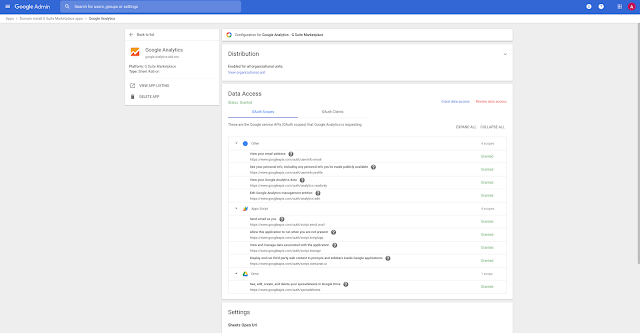
  • Functionality updates when you click into a specific app on the Domain install G Suite Marketplace apps page, including: 
    • A new “partially approved” status, in addition to “approved” and “not approved” to provide more visibility into data permissions for apps. 
    • New grouping for data access scopes by API buckets (e.g. “Gmail,” “Calendar,” etc) to make it easier to understand app data access. 
    • The OAuth client ID for the app. 

Visit the Help Center to learn more about how to manage Marketplace apps for your organization.

An example of the improved GSM app information page 

Easier to manage admin role assignments 

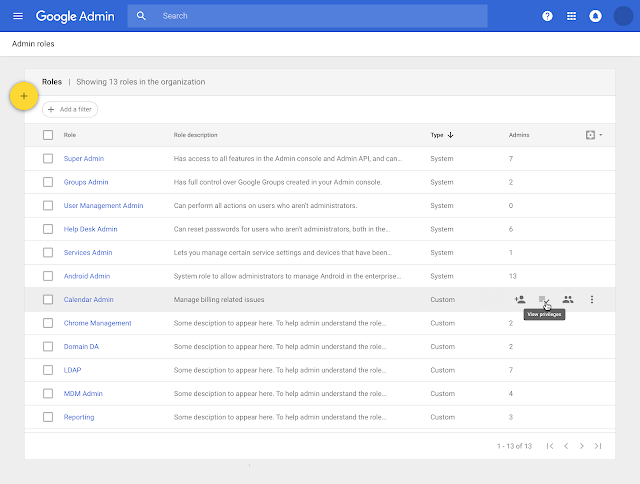
We’ve made updates to the area where you can view, create and assign admin roles within your organization. Improvements include:

  • A new roles home page, where you can quickly see all the system and custom roles and the admins assigned those roles. 
  • New quick-action buttons to more easily understand role privileges, then add and manage users in those roles. 
  • Easier ways to create and assign custom roles, including ability to copy an existing role. 

Use our Help Center to learn more about administrator roles in G Suite.

The new interface to manage admin roles 

New interface for domain management in the Admin console 

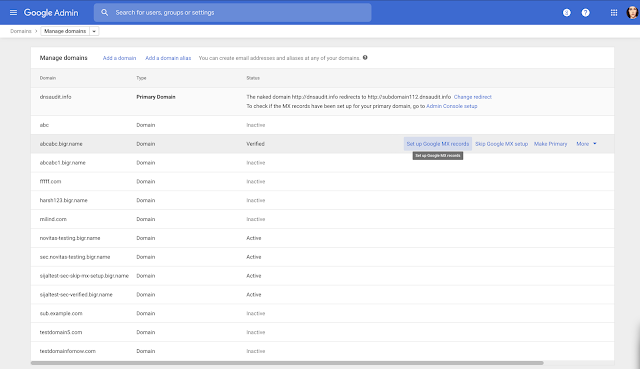
We’ve updated the interface you use to manage your primary domain, secondary domains, and domain aliases. When you go to Admin console > Domains > Manage domains, you may notice:

  • An updated interface with more complete information and descriptions of items and domain state. 
  • New grouped action buttons which make it easier to see and select the action you want to take, such as verifying domains, changing your primary domain, setting up MX records, and more. 
  • A new side panel which shows information about domains registered through Google, enabling you to quickly see and manage renewals and advanced DNS settings. 

Use our Help Center to learn more about how to add and manage domains in G Suite.

The new domain management interface in the Admin console 

Updated the unmanaged users and consumer account invite section 

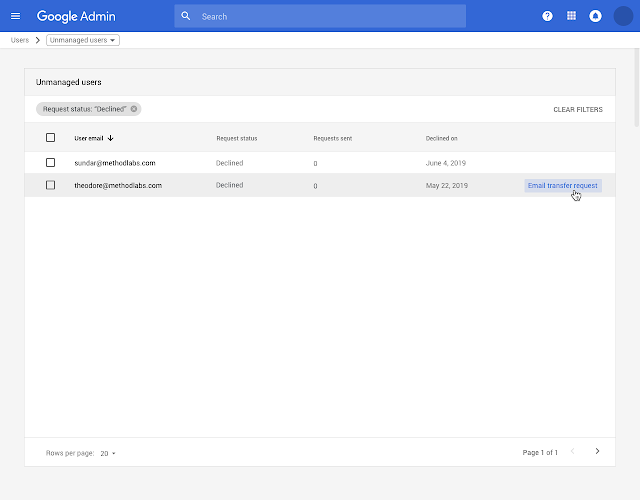
We’re making improvements to the interface you use to find and manage users who have personal Google Accounts that use your organization’s domain. Through this interface you can invite them to join your domain so you can better manage their accounts and any company data within it.

Specifically, when you go to Admin console > Tools > Transfer tool for unmanaged users, you’ll find an updated interface that makes it easier to:

  • Switch between managed and unmanaged account views. 
  • See and filter users with personal accounts. 
  • Invite them to migrate that account to your G Suite organization. 

Visit the Help Center to learn more about managing existing personal accounts for your organization.

Unmanaged user section in the Admin console

Getting started 

  • Admins: These updates will happen automatically. Use the Help Center links in each section above to learn more about the enhancements and available controls. 
  • End users: No end user impact. 

Rollout pace 

  • These updates are available now for all users. 

Availability 

  • Available to all G Suite customers 

Roadmap 

  • Updates to the G Suite Marketplace apps section in Admin console was listed as an upcoming G Suite release.

[ad_2]

Net Universe offers all Google devices with worldwide Delivery Services.
Send us an email to [email protected] for more information or visit https://www.netuniversecorp.com/google.
You can visit our Shop Online


Use NFC and USB security keys natively on iOS devices

What’s changing 

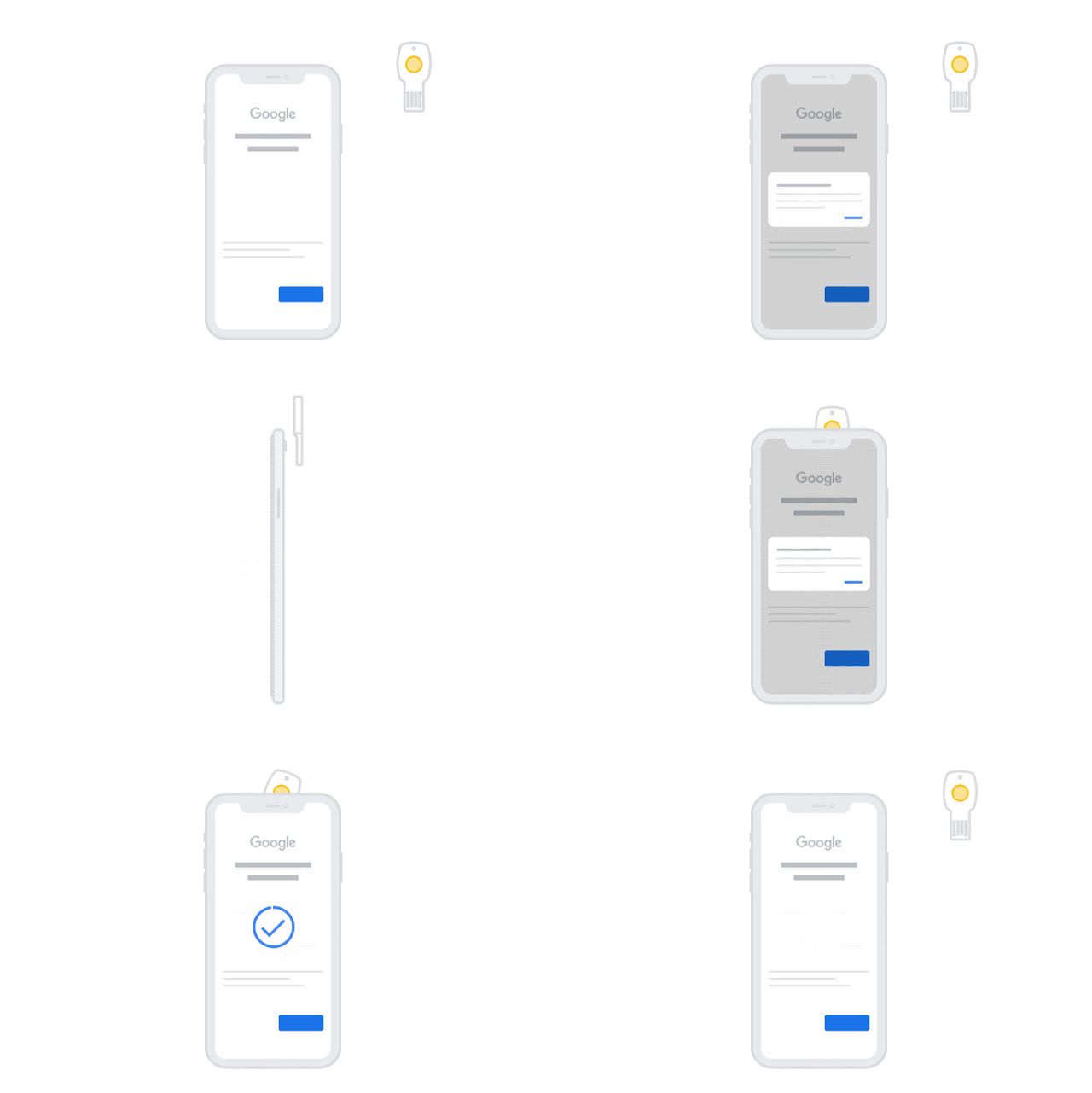
We’re making it easier to use security keys with your Google Account on iOS devices. Specifically, we’re enabling native support for the W3C WebAuthn implementation on Apple devices running iOS 13.3 and above. This means you can use a USB or NFC security key directly on an iOS device, without installing the Google Smart Lock app.

Learn more about how you can use security keys on Apple devices on our Security blog.

Who’s impacted 

End users

Why it’s important 

Security keys provide the strongest form of 2-Step Verification (also known as two-factor authentication or 2FA) to help protect your account against phishing, especially when used as part of the Advanced Protection Program for the enterprise. With this launch you can now:

  • Tap a Titan Security Key (all of which have built-in NFC) on the back of your iPhone. 
  • Use any USB security key directly on an iOS device that has a USB port (such as an iPad Pro) or via an Apple Lightning to USB camera adapter on any other device. 
  • Use Bluetooth security keys or your phone’s built-in security key on any iOS device via the Google Smart Lock app. 

We hope this launch makes it easier for iOS users to take advantage of the protection security keys offer. See more about why this matters and how to use it on our Security blog.

Using an NFC security key on iPhone 

Getting started 

  • Admins: This feature will be available for all users by default. Visit the Help Center to learn more about how to protect your business with 2-Step Verification and how the Advanced Protection Program can help protect your users. 
  • End users: This feature will be OFF by default. To turn it on, add your Google Account to your iOS device at Settings > Passwords & Accounts, or install the Google app and sign in. Visit the Help Center to learn more about how to use a security key for 2-Step Verification and get stronger account security with the Advanced Protection Program. 

Rollout pace 

  • Rapid and Scheduled Release domains: Gradual rollout (up to 15 days for feature visibility) starting on June 3, 2020 

Availability 

  • Available to all G Suite and Cloud Identity customers, as well as users with personal Google Accounts 

Resources 

  • Security Blog: Making the Advanced Protection Program and Titan Security Keys easier to use on Apple iOS devices 
  • G Suite Admin Help: Protect users with the Advanced Protection Program 
  • Google Help: Use a security key for 2-Step Verification
  • Advanced Protection Program: g.co/advancedprotection

[ad_2]

Net Universe offers all Google devices with worldwide Delivery Services.
Send us an email to [email protected] for more information or visit https://www.netuniversecorp.com/google.
You can visit our Shop Online


Migrate your users from classic Hangouts to Google Chat, now available in Gmail

What’s changing

You can now migrate all of your users from classic Hangouts to Google Chat with the “Chat preferred” setting in the Admin console. If you enable this setting, Google Chat will become the default chat application for your organization, replacing all of your classic Hangouts apps and appearing in Gmail on the web. This highly-anticipated integration will allow your users to communicate seamlessly, without the disruption of switching tabs.

The Chat preferred setting was previously only available to a small group of customers via the Chat Accelerated Transition Program.

If you enable Chat preferred for your organization:

  • The new Chat experience will replace the classic Hangouts experience in Gmail.
  • All classic Hangouts applications, except hangouts.google.com, will be disabled, and users will be directed to go to chat.google.com or download the Chat mobile app.
  • The classic Hangouts bot will notify users of unread Classic group messages. 

Who’s impacted

Admins and end users

Why you’d use it

The Chat preferred setting allows you to migrate all of your users at once for the most effective and seamless transition. If some people use classic Hangouts and others use Chat, it can lead to missed messages and become burdensome for admins. And if you have a remote or distributed workforce, unifying your users onto a single chat network can help everyone communicate successfully.

You’ll also get access to exciting Chat features within Gmail in your browser. These include:

  • 1:1 and group direct messages
  • Full-screen rooms
  • Bot integrations
  • Forward to inbox
  • Emoji reactions
  • Message edit and delete

Getting started

Admins: The Chat preferred setting is OFF by default and can be enabled at the domain level. Visit the Help Center to learn more about migrating your users to Chat with Chat preferred.

Chat preferred setting enabled in the Admin console

To enable Chat preferred and migrate your users away from classic Hangouts, you must have Google Chat turned on for your domain. We strongly recommend that admins keep both Chat and classic Hangouts enabled to maximize the Chat network.

At the moment, enabling Chat preferred will migrate all users in your domain at once. We recommend this to minimize fragmentation within your organization. If you’d like to migrate at the organizational unit (OU) level, that option will be available in the coming weeks. Stay tuned to the G Suite Updates blog for more information. You can also visit the Help Center to learn more about our overall upgrade timeline from classic Hangouts to Chat.

End users: Visit the Help Center to learn more about how to turn Chat in Gmail on or off for your account.

Rollout pace

Availability

  • Available to all G Suite customers

Resources

Roadmap

[ad_2]

Net Universe offers all Google devices with worldwide Delivery Services.
Send us an email to [email protected] for more information or visit https://www.netuniversecorp.com/google.
You can visit our Shop Online


Google Docs assistive writing features coming to G Suite for Education and Nonprofits

Quick launch summary 

We’re making two Google Docs assistive writing features—Smart Compose and Autocorrect—available to G Suite for Education, G Suite Enterprise for Education, and G Suite for Nonprofits users.

These features add to other intelligent assistive writing features, such as neural grammar correction in Gmail, which help G Suite for Education users write more quickly and efficiently. The new features were previously available to other G Suite editions, but not G Suite for Education customers. Users can choose to turn each feature on or off.

Autocorrect in Google Docs 
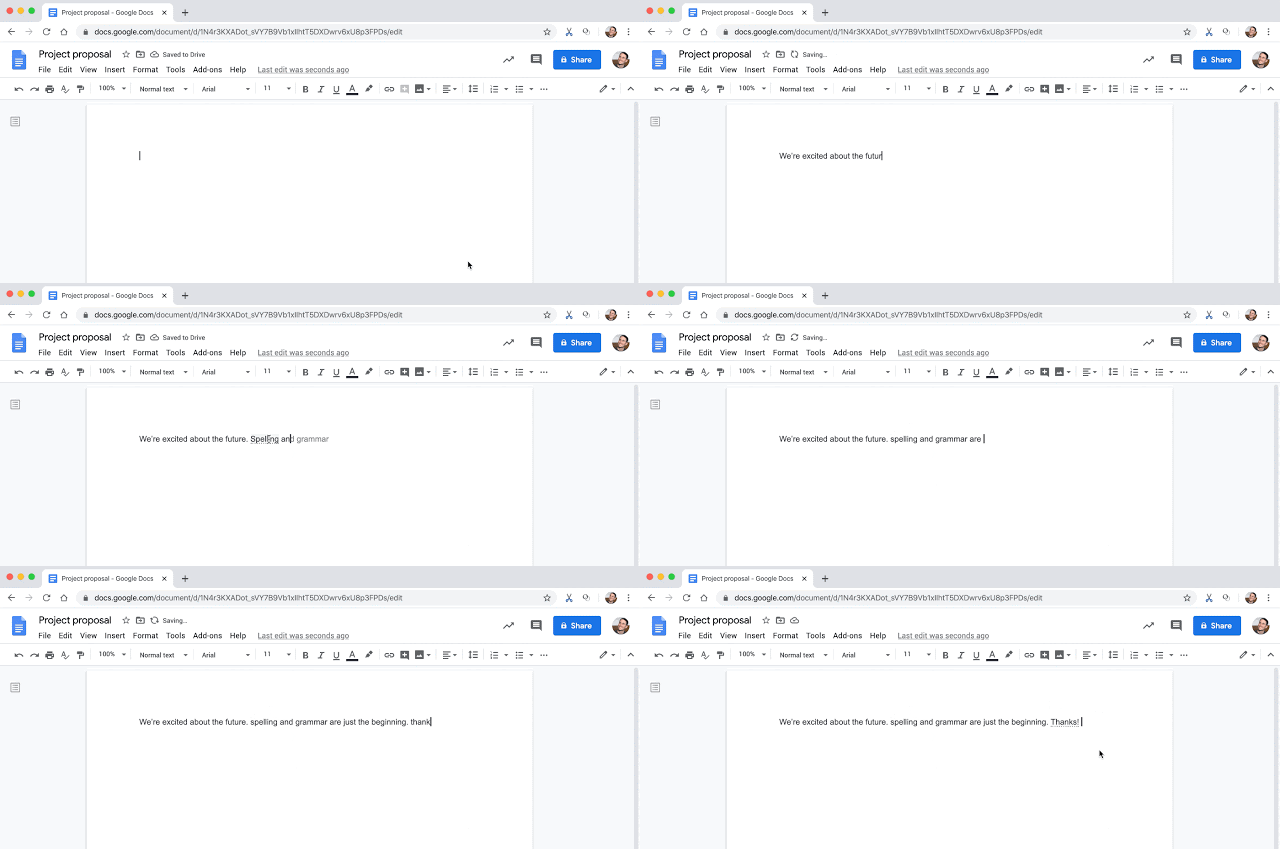
Autocorrect helps you compose documents quickly and with confidence. Misspelled words will automatically be corrected while typing and denoted with a grey dashed underline. As you continue typing, this dashed line will disappear. It will be available for Google Docs on the web in English. See more information on autocorrect in Docs here.

Smart Compose in Google Docs 
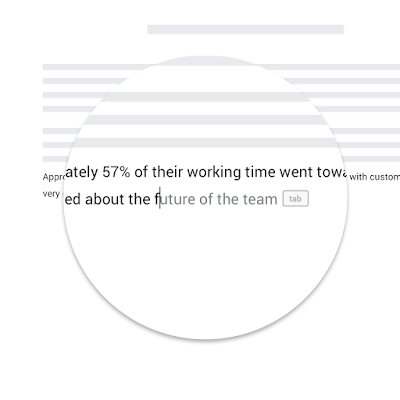
Smart Compose helps you compose high-quality content faster by cutting back on repetitive writing while reducing the chance of spelling and grammatical errors. It will be available for Google Docs on the web in English. See more information on Smart Compose in Docs here.

Autocorrect makes it easier to write in Google Docs 

Smart Compose helps you write more quickly and accurately 

Getting started 

Admins: There are currently no admin controls for these features. However, we plan to add an admin control for Smart Compose by the start of the 2020/2021 school year.

End users: 

Rollout pace 

  • Rapid and Scheduled Release domains: Extended rollout (potentially longer than 15 days for feature visibility) starting on June 1, 2020. We expect rollout to complete by June 30, 2020. 

Availability 

  • Now available to G Suite for Education, G Suite Enterprise for Education customers, and G Suite for Nonprofits customers 
  • Already available to G Suite Basic, G Suite Business, and G Suite Enterprise customers. 

Resources 

[ad_2]

Net Universe offers all Google devices with worldwide Delivery Services.
Send us an email to [email protected] for more information or visit https://www.netuniversecorp.com/google.
You can visit our Shop Online


Use in Gmail and transfer calls

Quick launch summary

Google Voice is now available in Gmail when using Chrome or Firefox browsers on your computer. This allows you to make and receive calls without switching tabs. Google Voice in Gmail looks similar to the call panel in the Voice web application, allowing you to answer calls, make new outbound calls, and easily transfer calls.

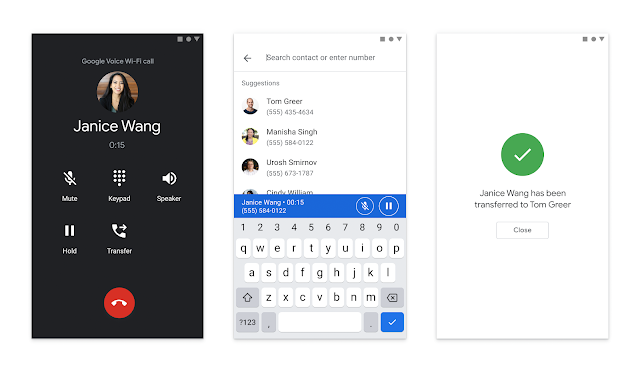
In addition, you can now transfer calls using the Google Voice mobile and web apps. In a few simple steps, you can send a call to the appropriate person, whether that’s an intelligently-suggested contact, searching in your directory or a manually entered phone number.

Call transferring is available in Voice on Android, iOS, and the web.

Getting started

Admins: There is no admin control for this feature.

End users: These features will be available to Voice customers by default. Visit the Help Center to learn more about transferring calls or using Google Voice in Gmail.

Rollout pace

Google Voice call transfer

Google Voice in Gmail

Availability

  • Available to all G Suite customers with Google Voice licenses

Resources

Roadmap

[ad_2]

Net Universe offers all Google devices with worldwide Delivery Services.
Send us an email to [email protected] for more information or visit https://www.netuniversecorp.com/google.
You can visit our Shop Online


Use the new Google Chat app for fast and reliable communication

What’s changing

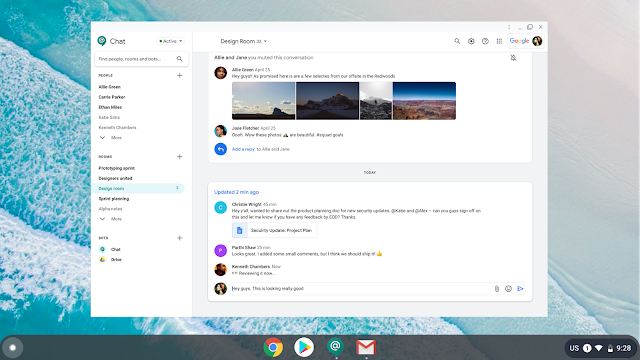
We’ve launched a new Google Chat standalone app. The app is a Progressive Web Application (PWA), which provides a fast, reliable, and engaging way to use Chat on any desktop device with the Google Chrome web browser.

See more details below, or visit our Help Center to learn more about the Google Chat PWA.

Who’s impacted

Admins and end users

Why you’d use it

The Chat PWA offers a simple and powerful way to communicate through Chat. Once users install the app, it integrates with their device’s operating system to function like a native app and offer the simple and efficient Chat experience users know. For example, they can:

  • Quickly find and communicate with people, rooms, and bots through the app.
  • Communicate quickly with a simple and intuitive interface.

The Chat PWA also offers simple app deployment and management. It’s:

  • Secure: The app is kept up to date with Chrome, so the updated app has the latest security patches.
  • Fast and simple: Auto-updates also mean users have the latest version without extra process or keeping track of separate updates.
  • Easier to distribute: Admins can deploy the app to all of their users in the Admin console.
  • Broadly compatible: The PWA runs on any device with Google Chrome browser version 73 and up. Version 73 was released in March 2019. This means it works on Windows, MacOS, Chrome OS, and Linux devices.

Additional details

What happens to the existing desktop app? We recommend that admins uninstall the existing electron based app or ask users to uninstall it in favor of installing the new app.

New Chat PWA

Getting started

Admins: Visit our Help Center to learn more about the Google Chat PWA and understand the steps to deploy the PWA app to all users through the Admin console.

End users: This app will not be available until installed on a user’s device. Visit our Help Center to learn how to install the PWA.

Rollout Pace

  • This app is available now for all users to install.

Availability

  • Available to all G Suite customers

Resources

Roadmap

[ad_2]

Net Universe offers all Google devices with worldwide Delivery Services.
Send us an email to [email protected] for more information or visit https://www.netuniversecorp.com/google.
You can visit our Shop Online