ProTips: 5 Ways to Scale Customer Support Without Breaking the Bank

This is a guest post by Himanshu, Exotel

Customer support directly impacts customer loyalty, revenue churn, and customer lifetime value (CLV). As businesses grow, scaling customer support is important to deliver the same level of customer experience. But how does a company scale-up support without breaking the bank? Just increasing the team size by hiring more agents isn’t enough, as there are many other factors at play. Below are five things to keep in mind while scaling support:

ProTip 1: Invest in the right tools  

Helpdesk tool

Having the right helpdesk tool in place is pivotal in assisting your move to a bigger support team. Not only does it empower your support team to communicate effectively with your customers, but it also helps you streamline other aspects of support, like setting up SLAs, tracking metrics or assigning tickets contextually.

Here are a few benefits of choosing the right helpdesk tool:

  • Adds personalization to your customer communication

  • Helps increase the productivity of your agents

  • Collect customer feedback, track CSAT scores and other metrics easily

Cloud Telephony Platform

Calls are one of the most commonly used channels to support customers, so the platform you use to power your calls is just as important as your helpdesk tool. To help your team communicate effectively through calls, you need to invest in a cloud communication platform that integrates with your helpdesk tool. Exotel does all that and more.

Here are a few benefits of using a cloud telephony platform:

  • Increased call visibility

  • Low maintenance and minimal upfront costs

  • Enhanced customer privacy through virtual numbers

  • Manage calls from anywhere

ProTip 2: Automate & Integrate   

Automation

Support automation can save you hundreds of hours of work and resources every day. While many companies are still skeptical about using bots or workflows for providing support, data shows us just how well it works.

In fact, according to a report, AI-powered chatbots have the potential to resolve 8 out of 10 common customer queries. More importantly, support automation doesn’t replace agents, but assists them in getting things done faster. This means you don’t need to worry about providing poor customer service.

Let’s look at some of the ways to levearge automation:

  • You can create a workflow automation in Zoho Desk. It helps you add a rule, set alerts, and more. You can use it to update tickets, trigger email notifications, and more.

  • Eliminate manual ticket assignments by creating conditions to assign tickets to agents

  • Zia, the inbuilt chatbot inside Zoho Desk, shares relevant solutions from your knowledge base directly with your customers depending on their query

Integrations

While scaling support, make sure to integrate the various tools that your support team uses. These integrations simplify your transition to a bigger team by streamlining your support processes. They remove the need to switch between apps and get things done.

Let’s look at some popular Zoho Desk integrations and how you can leverage them:

  • Jira – Easily convert tickets raised in ZohoDesk to engineering issues in Jira

  • Exotel – Triggers calls and tracks missed calls right from the dashboard

  • Slack – Get real-time support updates, collaborate with your team, and boost productivity

When done right, both automation and integrations can help you:

  • Increase the productivity of your agents

  • Reduce support costs

  • Reduce customer waiting time and the number of open tickets

  • Get advanced insights from combined reports

ProTip 3: Prioritize support queries  

A huge part of making your move to a bigger team efficiently is by prioritizing the right support queries. Not all queries require the same attention, and having more people on your team isn’t going to help you improve customer service if you fail to address critical issues at the right time.

Moreover, it’s simply impossible to reply to everyone immediately, and that’s what makes ticket prioritization so crucial.

So, how do you identify which support queries to prioritize?

The best method is to create a prioritization system. Most helpdesk tools, including Zoho Desk, allow you to tag a ticket as low, medium, or high priority. This can be done both manually or automatically. Here are a few popular methods of prioritization you can implement:

  • First in First out  (FIFO) – Queries are resolved in the order the customers raise them

  • Manual assignment – An agent goes through each ticket and tags the priority manually

  • Automatic assignment –  Priority is automatically determined using custom workflows

  • Categorization – Assigning priority depending on the type of the query

Remember, these systems are not a one size fits all. It depends on factors like your team size,

working hours, the kind of product you have, and more.

While you’re setting up this system, you should consider setting SLAs as well. These are guidelines that state the maximum time that an agent can take to answer a ticket. This time can be set according to various parameters, including the priority level. For example, the maximum response time for a critical support request can be set to 30 mins. 

ProTip 4: Enable self-serve  

Customer support doesn’t always require an agent’s assistance. Sometimes support queries can be resolved using a knowledge base or a quick tutorial video. Not only does it saves the agent’s time, it also empowers customers to instantly solve a problem themselves. This is the reason most businesses suggest customers to go through their articles before allowing them to raise a support query.

Knowledge bases are one of the most effective ways to enable your customers to self-serve.

Most helpdesk tools, including Zoho Desk, allow you to create and format knowledge bases. You can also use it to create forums, customize it according to your brand, and more. Additionally, these pages are also SEO-friendly, which helps attract relevant customers from search engines.

You can also integrate knowledge bases with a chatbot to suggest customers the right solutions directly on chat. This makes chatbots very useful and effective.

ProTip 5: Track important metrics  

To ensure you are delivering high-quality customer support, you need to track some critical support metrics. These metrics help you understand your performance, find areas of improvement, and stay focused on what matters most. Here are five key support metrics you should track:

  • First Response Time – This indicates the time spent in responding to a customer query. Don’t confuse it with the total time taken to resolve a query.

  • Customer Satisfaction – CSAT scores indicate customer happiness. The results are based on the customer’s feedback after a ticket is resolved.

  • Resolution Time – This is the total time taken to resolve a particular query.

  • Call Wait Time – This is how long a customer has to wait before they are connected to an agent.

  • Net Promoter Score – The Net Promoter Score is an index ranging from -100 to 100 that measures the willingness of customers to recommend a company’s products or services to others.

The best part is that you don’t need to spend time tracking these metrics manually on a sheet. Once you’ve configured them on your helpdesk tool, most of these metrics are tracked automatically.

Scaling support is not a one-time thing. You’ll need to do it at different stages as your company grows. While tools play a very important role in helping you scale, it’s eventually all about taking the customer-first approach. Remember, loyal customers are your biggest brand advocates.

They provide positive endorsements and reviews that help you acquire more customers and strengthen your brand.

Exotel Zoho Phonebridge integration helps you manage calls and fetch information directly on Zoho apps. After using the integration, you can enable incoming call notifications, access call details with recordings, and trigger calls inside any Zoho application which supports Phonebridge v3 APIs.

Try Exotel for Zoho Desk

What are the different ways you’ve found useful for scaling your support? Let us know by dropping a comment below.

Net Universe offers all Zoho subscritpions and consultant services with worldwide Delivery Services.
Send us an email to [email protected] for more information or visit https://www.netuniversecorp.com/zoho.

Presenting the new and improved Zoho Workplace—your unified digital workspace

Due to the sudden recent shift in the way organizations work, the question of everyday productivity and collaboration is a widely discussed topic. While the immediate priority for teams before was to find the right tools out of numerous choices, the bigger problem now is finding a way for all their tools to work together. Disjointed, uncooperative applications can be as much a discomfort as having no tools at all.

One of the biggest obstacles to productivity, especially in remote work, is having to juggle between multiple applications for different everyday tasks and having little to no integration between these apps. To solve this problem, Zoho brings you a revamped Workplace, a comprehensive suite of productivity, communication, and collaboration tools. Workplace moves beyond offering just a suite of apps; it’s a completely unified and integrated workspace that integrates well with other business applications, providing context and ensuring continuity.

What makes the new Zoho Workplace one of its kind? Read on to find out. Or, if you’d first like to know what Workplace offers, here’s a quick video:


One place for all team communication and collaboration

Zoho Workplace brings your office suite, communication apps, meeting, and video conferencing tools all under one roof. While different teams depend on many different applications based on their roles, Zoho Workplace streamlines your organization’s communication and unites your company data. Whether you’re checking emails, getting on a meeting with colleagues, or collaborating on documents with your team, you can handle it all from Workplace.

A fully featured office suite

Zoho Workplace’s office suite includes a word processor that extends beyond just creating and editing files to automating documents, a spreadsheet tool that combines age-old standards with modern intelligence and new capabilities, and a presentation app that helps turn your data into engaging visual stories. All files are centrally stored and distributed via team-centric folders with fine-grained levels of access. What makes it even greater is these apps are synced across multiple devices and also work when you’re offline.

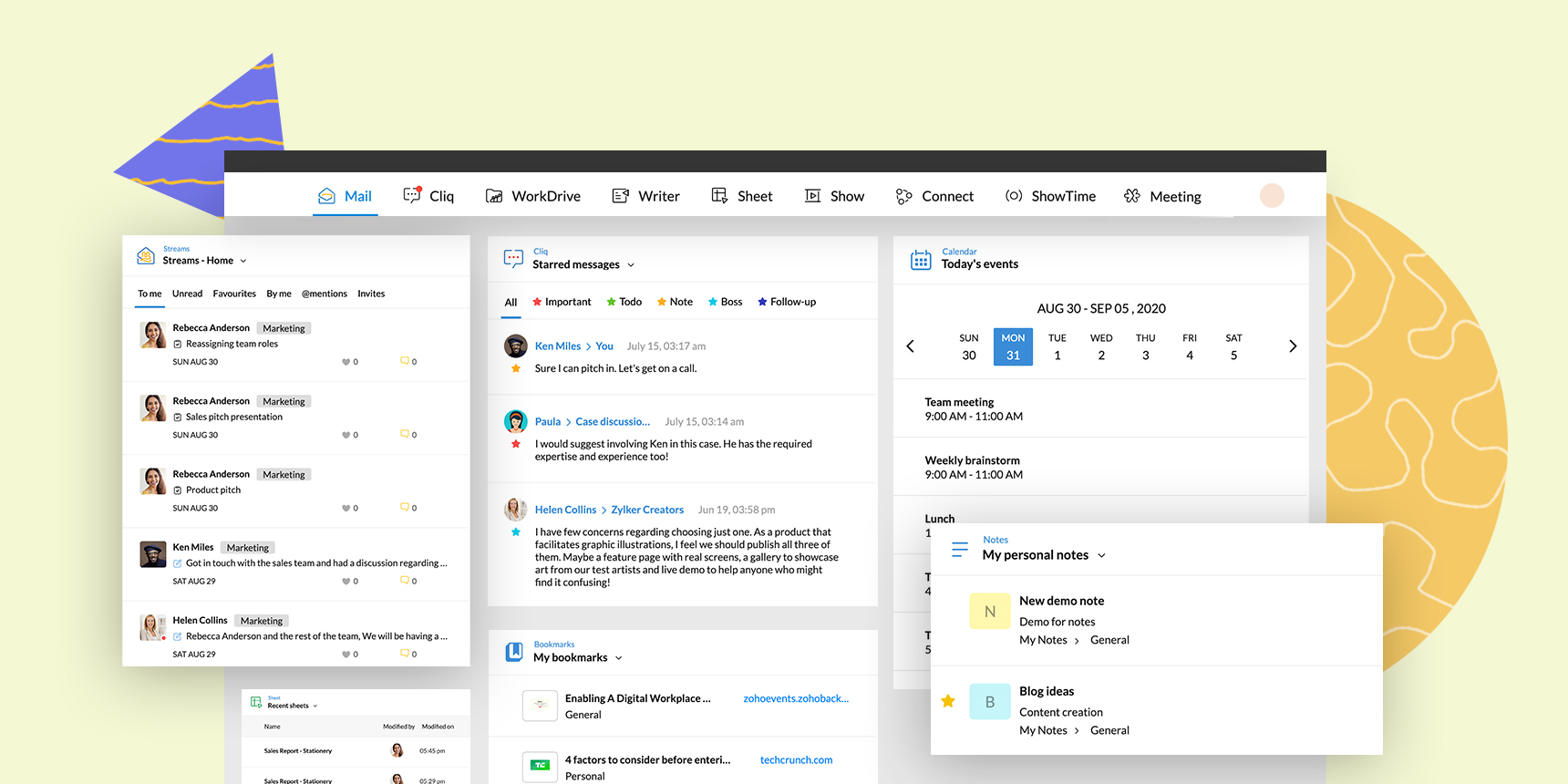
Workplace Dashboard: your central hub for work

The icing on top of the integrated Zoho Workplace is the Dashboard view. Remember how you walked into your cubicle and had to check for missed calls and messages, organize your tasks scribbled on sticky notes, check your schedules for the day, and more? In Workplace, your dashboard sorts and lays out recent and most important work items for you—such as your recent emails, calendar schedules, urgent documents, reminders, and more. As with any good dashboard, you can customize yours and reorganize your Dashboard widgets by simply dragging and dropping, enabling or disabling, or even creating new ones. These widgets are not just nice to look at, they are synced in real time and support quick actions like marking an email as read, starring a message, and changing the status of tasks, and shortcuts to create new items.

Workplace Dashboard

Maintaining context between apps

Workplace not only simplifies switching between apps, but also maintains context when you do, giving you a smooth transition from one app to the other. For example, an email attachment received in Mail can be edited with Writer, and uploaded to WorkDrive, while the email thread can be carried over to Cliq as a group conversation, an event can be created from this conversation, and a meeting can be launched from the event’s calendar entry.

Instant messages and calls are undoubtedly some of the most popular communication methods, so regardless of whether you’re working on a document, typing an email, or reading a Connect thread, the ever-present Cliq bar at the bottom of your window gives you access to all contacts and messages, as well as lets you start an audio or video call directly from there.

Analysts on Zoho Workplace

Unifying your Zoho experience

Not only does Workplace connect the apps you need for work, it unifies common settings to avoid information silos. This is why we created a single place for notifications in dedicated tabs, a single profile view that dynamically changes based on the current app tab you’re in, uniform theme and language settings across apps, and a common announcements panel.

Even outside of Workplace, you may have tasks residing in other Zoho apps like Projects or events created from apps like CRM. The Calendar and Tasks apps in Mail pull these from relevant apps to display them in Workplace, making it a unified place for your work.

Comprehensive integrations

Apps within Zoho Workplace are tightly knit, but we also know work spans beyond Workplace apps. Workplace makes it easy for organizations to integrate with other business apps, both from Zoho and other companies. Use our exclusive integration hub, eWidget, to bring more than 25 apps into your inbox. Similarly, each Workplace app has relevant and contextual integrations so that you can get your business apps and collaboration apps to work in tandem. You can check these integrations in our common marketplace. Developers or organizations with complex needs can also build and deploy their own custom extensions.

Customer testimonial

One search to find it all

Workplace doesn’t just give you a way to manage all your information—it also makes it searchable. Our AI-powered search function can search for a keyword across all Zoho apps, bringing up results categorized by product. You can narrow your search further by specifying search conditions. You can launch an app from your search and even take quick actions on results right there, like replying to an email, calling a contact, downloading a file, and more.

Watch out this space for more information in the coming days—we have several new enhancements lined up. Follow @ZohoWorkplace in Twitter to stay up to date!

Net Universe offers all Zoho subscritpions and consultant services with worldwide Delivery Services.
Send us an email to [email protected] for more information or visit https://www.netuniversecorp.com/zoho.
Ask an Expert: How cloud telephony integrations pave the way to unified communication and happy customers

Phone calls are one of the most important customer communication channels for businesses, but many businesses still haven’t integrated calls into their tools and workflows. We asked Sanjeeth Kumar, Chief Marketing Officer at Exotel, about the importance of cloud telephony in delivering seamless customer experiences and how it can help businesses implement unified communication for their customer-facing teams.

1. What is unified communication and why should businesses care about it?

Businesses are increasingly using multiple tools to communicate, both internally to enhance workforce collaboration and externally to communicate with customers. But most of these tools exist in silos. There is no information being shared between them, making it difficult for agents to stay abreast of what’s happening across these channels. More often than not, this isolation leads to bad customer experience. It also results in loss of productivity and causes inefficiency at work.

Unified communication, or UC, aims to combat this. Unified communication refers to creating a common interface for accessing data by integrating the various customer-facing tools that your team uses. UC eliminates context-switching and allows users to work effectively.

It is important to understand that unified communication is not about having a single tool that does it all. Rather, it is about ensuring that customer data is not lost in translation between the various touchpoints.

2. Why is it important to integrate calls with your ticketing system or CRM? How does cloud telephony help enable this?

Phone calls have been and continue to be one of the most important customer communication channels for businesses. Prior to cloud telephony, this channel was rigid, stand-alone, and difficult to monitor and track.

However, the virtualization of telephony has opened up a host of opportunities for businesses. One of the major benefits of cloud telephony is the fact that now businesses can integrate their phone system with other software, making it easy to track and access.

Cloud telephony is an important piece of the unified communication puzzle. It enables companies to fetch valuable data from one of the most important customer communication channels—phone calls—and view it contextually within other dashboards, like helpdesk software or CRM tools. This gives users better context and accessibility, enabling them to be more efficient. For instance, integrating  Exotel and Zoho CRM helps improve agents’ productivity and provides you with call logs within Zoho for tracking, monitoring, and training purposes.

3. What are the benefits of unifying communication for customer-facing teams?

The two teams that communicate with customers the most are sales and support teams. Unifying communication for them means integrating the tools they use (CRM and helpdesk) with the communication channels they use the most (such as phone calls). Exotel’s integration with Zoho Desk does that and enables a uniform support experience for both the customers and the agents. Here are the top three benefits of the integration:

a. Increased productivity: Exotel’s integration with Zoho Desk gives agents access to features like click-to-call, automatic ticket creation for missed calls, and the ability to answer calls from the helpdesk dashboard. These features save agents countless hours of switching between tools and ensure that they never miss a customer call.

b. Enhanced customer experience: Every time a customer calls, a pop-up is displayed on the agent’s screen with all the relevant information about the caller. This way, they know who’s calling and are aware of the context (such as any open tickets) even before speaking to the customer. Having this information handy enables agents to personalize their communication, leading to better customer experience.

c. Better visibility: An integration between your helpdesk and your phone system means that you don’t have to look for data in separate places—the information isn’t fragmented. Call details including audio recordings can easily be associated with each ticket, so everything is available in a single place. You can also generate multiple reports that include information from both tools for better visibility and insights.

4. How can Exotel help create consistent messaging? Why is this important?

People tend to assume that the marketing team is the custodian of your brand image — defined by your website, advertisements, and your taglines. But that’s just the tip of the iceberg. A brand is what the customer experiences with your company at each point of interaction, and sales and support teams form an important part of this experience. That is why consistent messaging is needed across these interactions.

Exotel’s integration with Zoho Desk makes it easier for your agents to access the information they need to adhere to your messaging guidelines. This ensures that your customers’ experience with your brand is consistent at each touchpoint. For example, every time a customer calls up your support team to follow up on an open ticket, they shouldn’t have to brief the agent on the issue all over again. Your support desk already has all the details your agent needs to speak to the customer contextually. But if this information is isolated, the agent either has to scramble for context or ask the customer for the information again. Either way, customer experience takes a hit.

By keeping your phone system and your CRM/helpdesk isolated, you create the conditions for a broken customer experience. When you integrate these two systems, all your agents are empowered to give your customers the best experience possible. A unified communication system is one of the biggest factors that influences the customer’s perception of the brand.

5. What are some direct and indirect benefits of integrating Exotel with Zoho Desk and CRM?

The direct benefit is the increased productivity of your agents. The indirect benefit is the unified, contextual experience for your customer. A great customer experience moves multiple metrics for a company—it increases brand value, reduces churn, and also becomes a great acquisition strategy. There is nothing better than happy customers referring your product to other customers.

Try Exotel for Zoho CRM and Zoho Desk

Work smarter by adding new capabilities to your Zoho products with business solutions from Zoho Marketplace.

Net Universe offers all Zoho subscritpions and consultant services with worldwide Delivery Services.
Send us an email to [email protected] for more information or visit https://www.netuniversecorp.com/zoho.
Zoho Meeting Becomes More Feature-rich: Recurring Meetings and Webinars, Better Support from Mobile, Email Customization and more

Since working from home has become more and more common across the world during the COVID-19 crisis, we’ve been busy working to make Zoho Meeting into a full-fledged web conferencing platform that fully supports remote collaboration. In April this year, we introduced video conferencing with multiple video feeds, which was well-received by our users around the world. We’ve achieved more in the last few months and we are excited to share the latest updates with you.

Online Meetings

Schedule and start meetings from mobile: No matter where you are, you can plan your meetings and schedule them on your mobile using the Zoho Meeting mobile apps. Create an agenda, decide a time, and add participants to your meeting from your mobile device. Start the meeting from your mobile even if you’re not at your work desk when the meeting starts.

Recurring meetings: Many teams conduct regular online meetings every day, every week, or every month. Regular meetings keep team members up to date on the team’s goals and the progress achieved so far on different projects. You can now schedule your regular meetings from Zoho Meeting using the Recurring Meeting feature.

Chat transcripts: During a meeting, a lot of useful information gets shared via chat messages. Maintaining a copy of these messages can be useful for reviewing the discussions and reusing any links that were shared during the meeting. You can now download chat messages in the form of transcripts from the meeting report. 

Search, Sort, and Filter: The newly added Search, Sort, and Filter capabilities let you search for meetings, sort meeting lists, filter participants in a meeting, and search or sort participant lists based on different criteria. These features come in handy when you need to find specific meetings created from your account, check who has joined a meeting, and view your upcoming meetings in the order you want.

Host controls: Meeting hosts can now disable screen sharing by participants in a meeting if they want. They can also control who speaks in a meeting by taking away the participants’ ability to unmute their microphones. All participants entering a meeting are also muted by default. This prevents their voices from being heard unintentionally if they are not ready to speak.

Webinars

Email customization: Webinar organizers can now customize the content of their webinar invitations, registration confirmation emails, and reminder emails. They can disable certain emails if they want and also add more reminder emails if required. With email customization, organizers can also merge different fields, such as the names of participants into the emails, and personalize them. Learn more.

More customization in registration forms: With registration customization, webinar organizers can add fields and questions to their webinar registration form. Now we’ve added another layer of customization with which you can edit the field names in your webinar registration form. For example, the pre-defined field label “Name” can be edited and changed to “First Name.”

Recurring webinars: Similar to the Recurring meeting feature, recurring webinars reduce your effort in scheduling your regular webinars. Many organizations conduct webinars every week or month for better engagement with their customers, partners, and stakeholders. You can also use the recurring webinar feature for your webinar series.

Integration with Zoho Backstage: Zoho Backstage is an enterprise event management tool that helps you with everything from website creation, ticketing, and event promotion to attendee registration and engagement. With our new integration, you can use Zoho Meeting as a webcasting service from Zoho Backstage for conducting online events. Learn more.

Common updates for meetings and webinars 

Support for more languages: We have added support for many more languages for our users from different regions around the world. Zoho Meeting is now available in English, Simplified Chinese, Traditional Chinese, Japanese, French, Spanish, German, Thai, Vietnamese, Bahasa (Indonesia), Korean, Portuguese Portugal, Portuguese Brazil, Bulgarian, Swedish, and Italian. 

Key invalidation: As a step towards better security, we have invalidated keys used for your previous meetings and webinars. This prevents hackers and online abusers from randomly guessing meeting and webinar keys to get access to your data. As a result, you will no longer be able to re-start your past meetings and webinars. 

That’s all for now. We hope you’ll try out these features and let us know your feedback by leaving a comment below or write to us at [email protected] 

Take care and stay safe.

Net Universe offers all Zoho subscritpions and consultant services with worldwide Delivery Services.
Send us an email to [email protected] for more information or visit https://www.netuniversecorp.com/zoho.
Creating a successful L&D strategy

Tips for organizing Learning and development programs


Learning and development (L&D) programs are essential for small and medium-sized businesses to improve employee productivity and keep up with ever-changing market trends. Employee retention also increases when workers are provided with professional development opportunities.

Tips for organizing Learning and development programs

While organizing learning programs, there are several factors to consider. This will help you to create courses that are relevant and interesting to your employees. Here are some tips to create the right training courses for your employees:

  • Perform skill gap analyses to determine the learning needs of your organization
  • Set a clear learning goal by specifying the changes you hope to see after workers complete certain courses
  • Use e-learning technology to train a dispersed, remote workforce
  • Allow learners to take control and ownership over their own learning
  • Analyze employee performance by encouraging them to put what they learn into action
  • Gather feedback from learners to make the courses consistent with their expectations

Learn more about these tips for creating L&D programs in our HR Knowledge Hive.

Net Universe offers all Zoho subscritpions and consultant services with worldwide Delivery Services.
Send us an email to [email protected] for more information or visit https://www.netuniversecorp.com/zoho.
Bring your apps into Cliq with Widgets

Bring your apps into Cliq

Everything we do on the Cliq platform is backed by the sole objective of making your everyday apps more accessible. Collaboration is crucial, and it becomes even more powerful when driven by context and accessible information. Your apps should be accessible right where you collaborate and invariably spend a major chunk of your time so you don’t have to switch between multiple apps to find the data you need.

We’ve added a series of updates to the Zoho Cliq Platform that are designed to bring people, the apps they use, and the data they need together in Cliq.

Introducing Widgets

Widgets bring the tools you use into one place: your Cliq window.

Widgets integrate with your everyday apps to create a custom view inside Cliq. You can easily access them from the Widget section in your Cliq sidebar.

Understanding Widgets

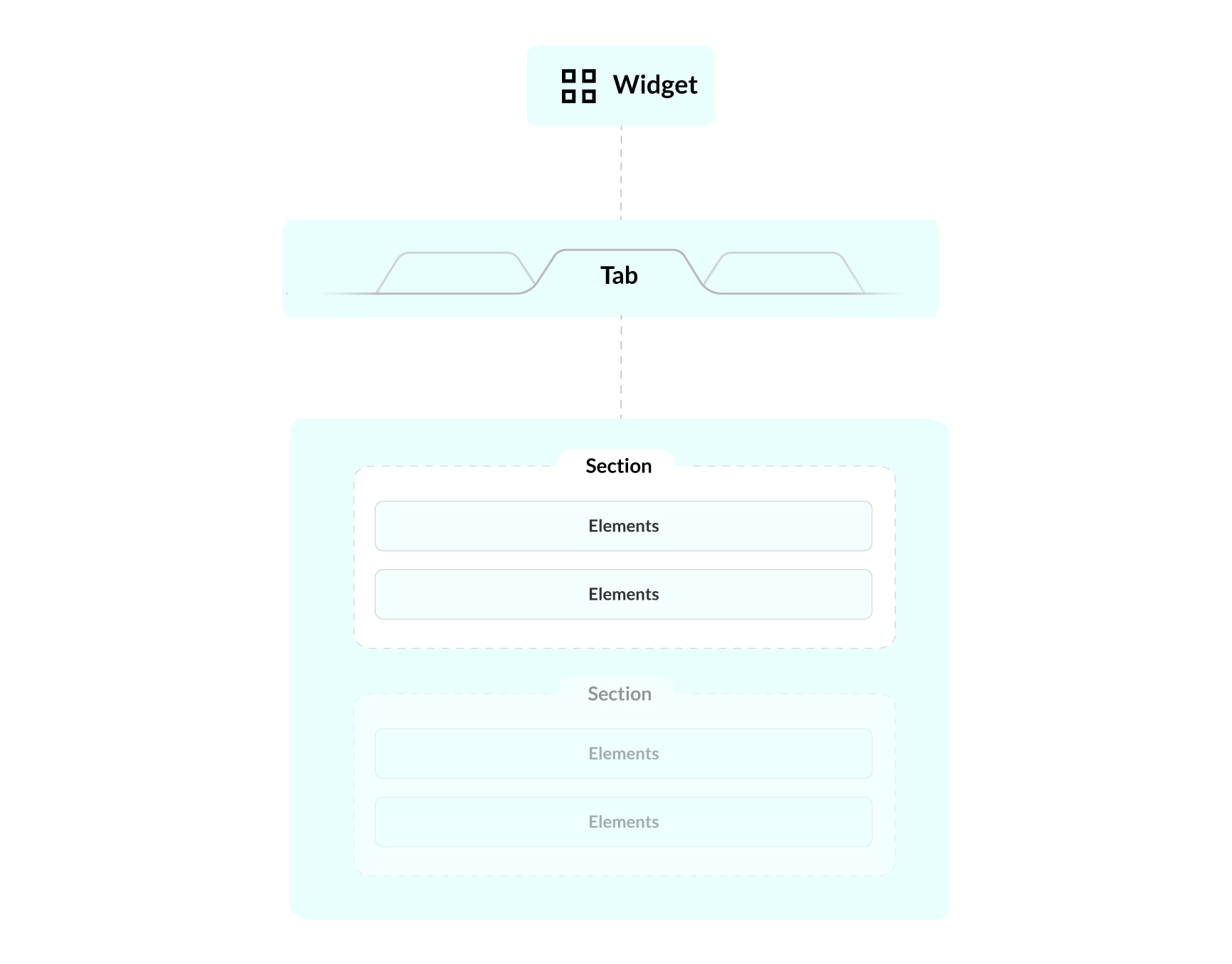
Each Widget is made up of tabs containing sections that house a combination of various elements.

Widget Tabs: Tabs in Widgets are similar to your browser’s tabs. They’re labeled, clickable pages that can hold up to 20 sections of information. Each Widget can have a maximum of 5 tabs.

Widget Sections: Widget tabs can contain up to 20 sections. These sections help organize all kinds of data, including tables, images, text, and more.

Widget Section Elements: Section elements are the building blocks of your Cliq Widget. There are different types of Widget section elements, such as title, text, subtext, divider, buttons, and more.

Widget Views: Widget views are customizable views that can be created based on the type and amount of data you’d like to display. There are three types of Widget views that you can create:

      • Sections View
      • Info View
      • Web View

Widgets Structure

Learn more about the different types of Widget section elements here.

Widgets can also be bundled into an extension and hosted on the Zoho Marketplace. We have updated a few of our existing Marketplace extensions, such as Poll for Zoho Cliq, Box for Cliq, Dropbox for Cliq, and a few others with Widgets. Take a look at some of the new additions that we’ve added in the marketplace. We’ve listed out a couple of new extensions for you right here, read on!

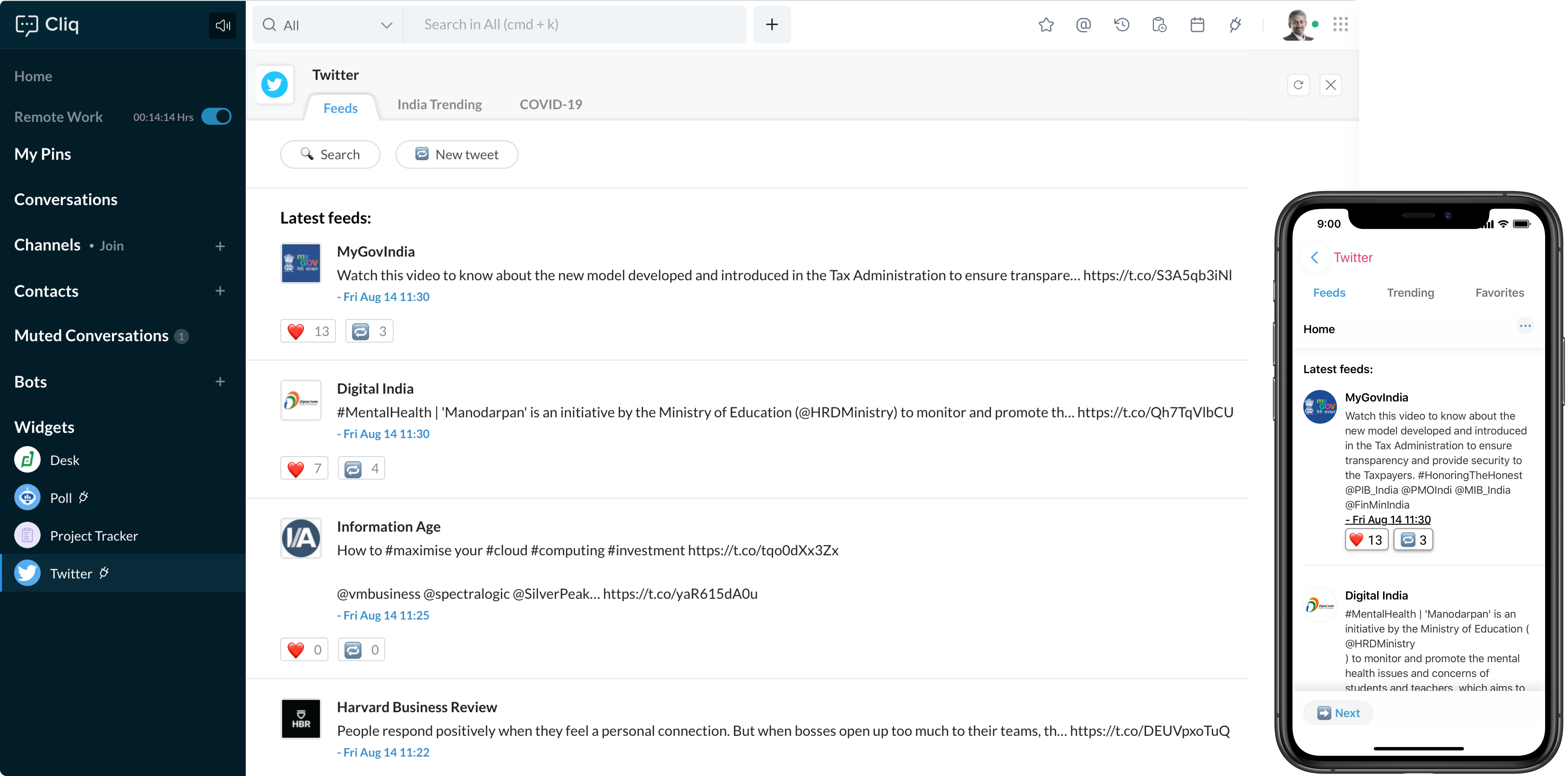
Your Twitter timeline, brought into Cliq

The Twitter Widget shows your Twitter feed, lets you like, retweet, search, and even post a new tweet. You can also view the current trending hashtags based on your region and topic as well.

Install the Twitter integration for Cliq today.

Cliq - Twitter Integration

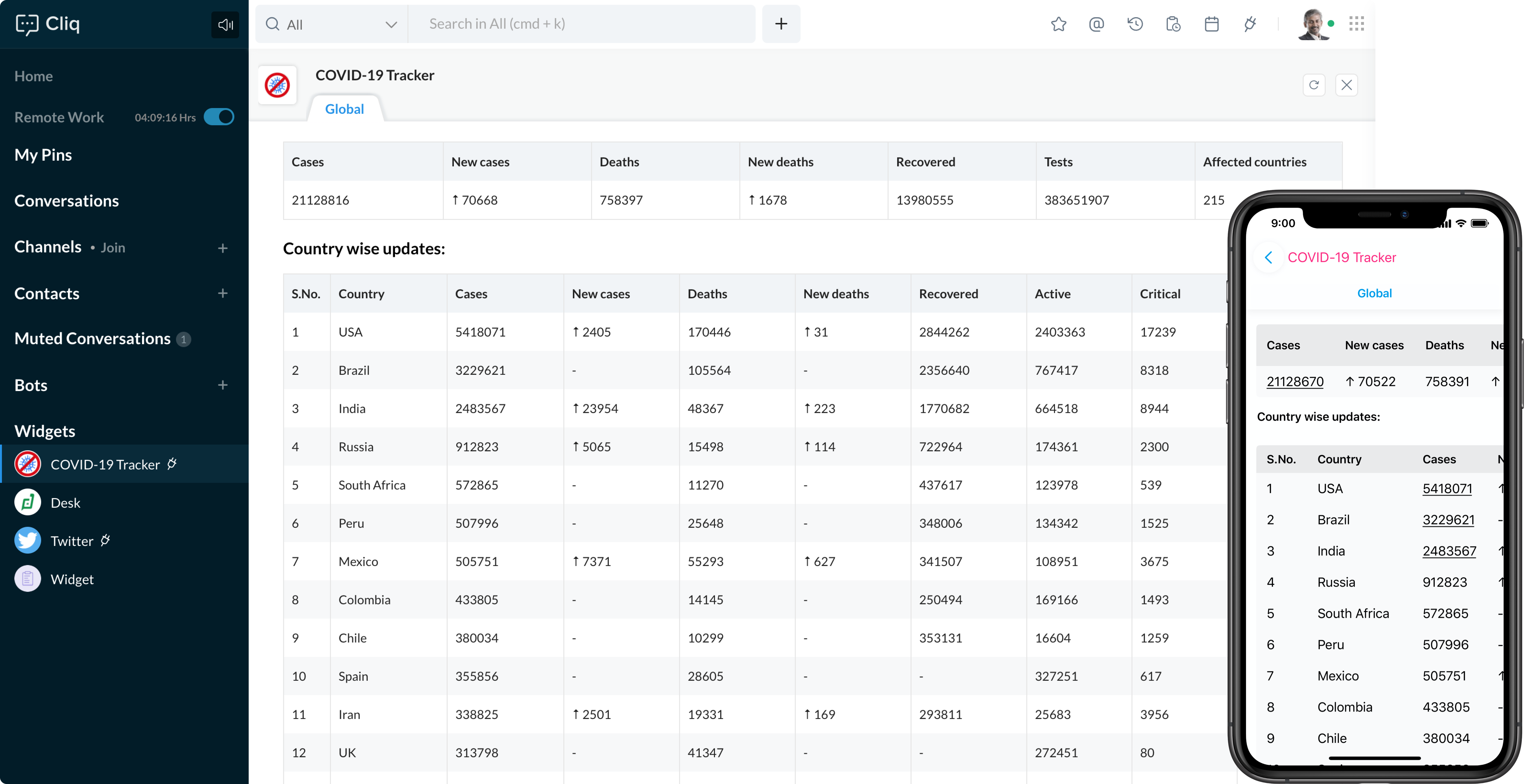
Keep track of COVID-19 updates

The COVID-19 tracker keeps you up to date on the current situation in your country and across the world. You can get a full picture of the total number of new cases, active cases, recoveries, and more.

Install the COVID-19 tracker today.

COVID-19 Widget for Cliq

Document collaboration made easy with the Zoho Writer Integration

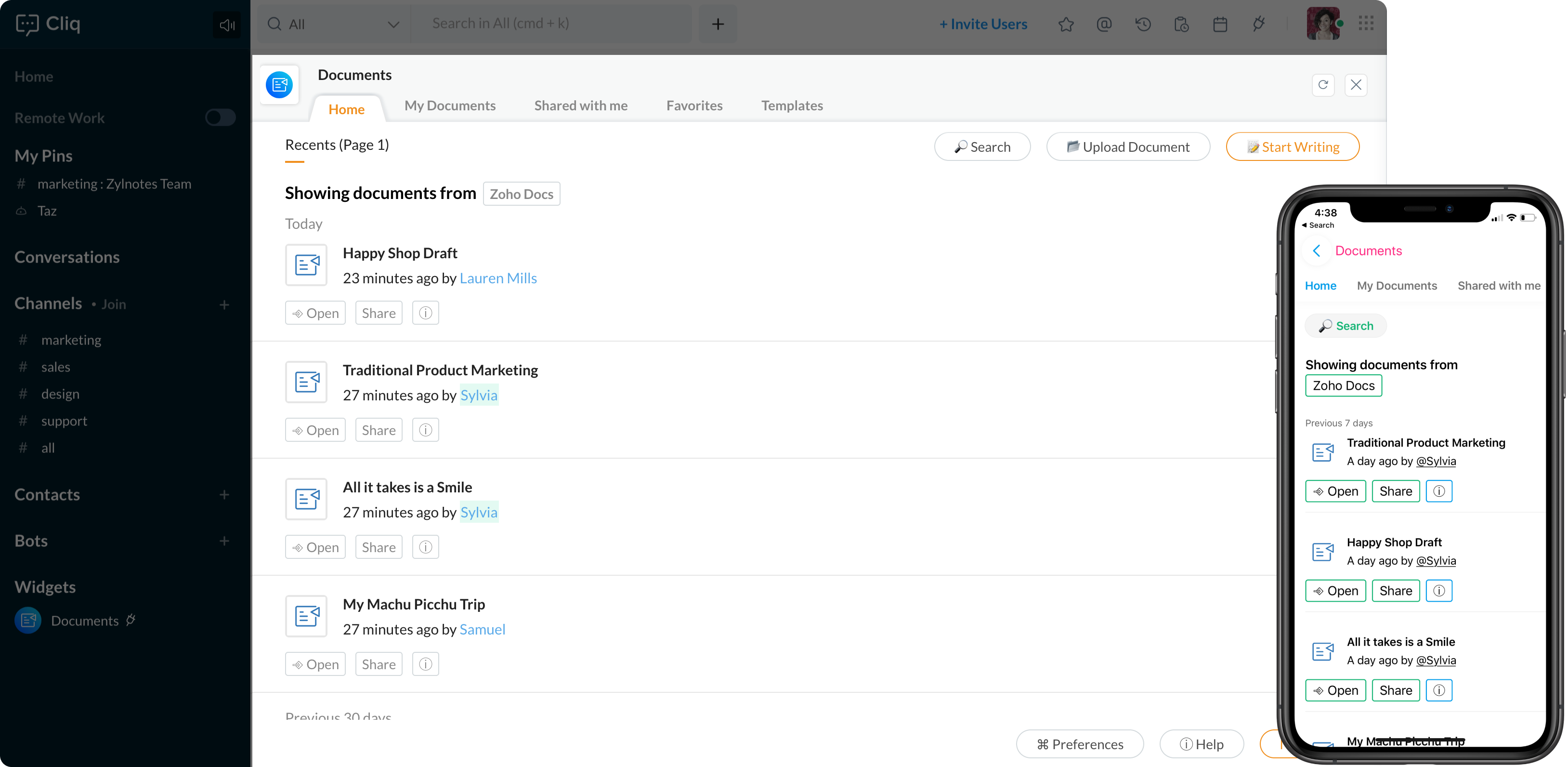
Zoho Writer’s integration with Cliq is a great way to collaborate on your documents from the comfort of your chat window. This powerful integration comes with a “Documents” Widget where you can view recent documents, create new documents, view documents shared with you, your favorites, or even create a new template.

Zoho Writer integration with Zoho Cliq

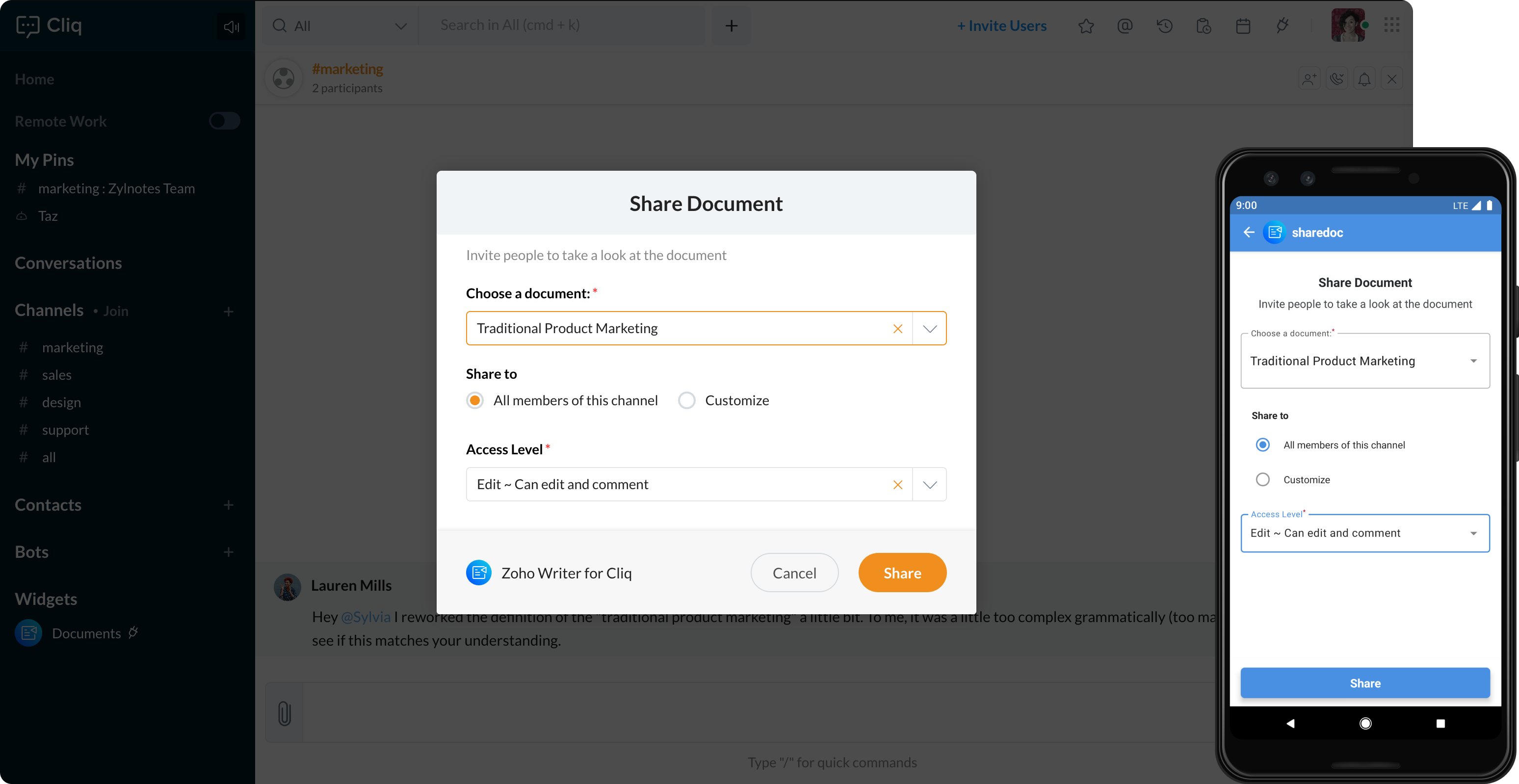
Share documents in Cliq

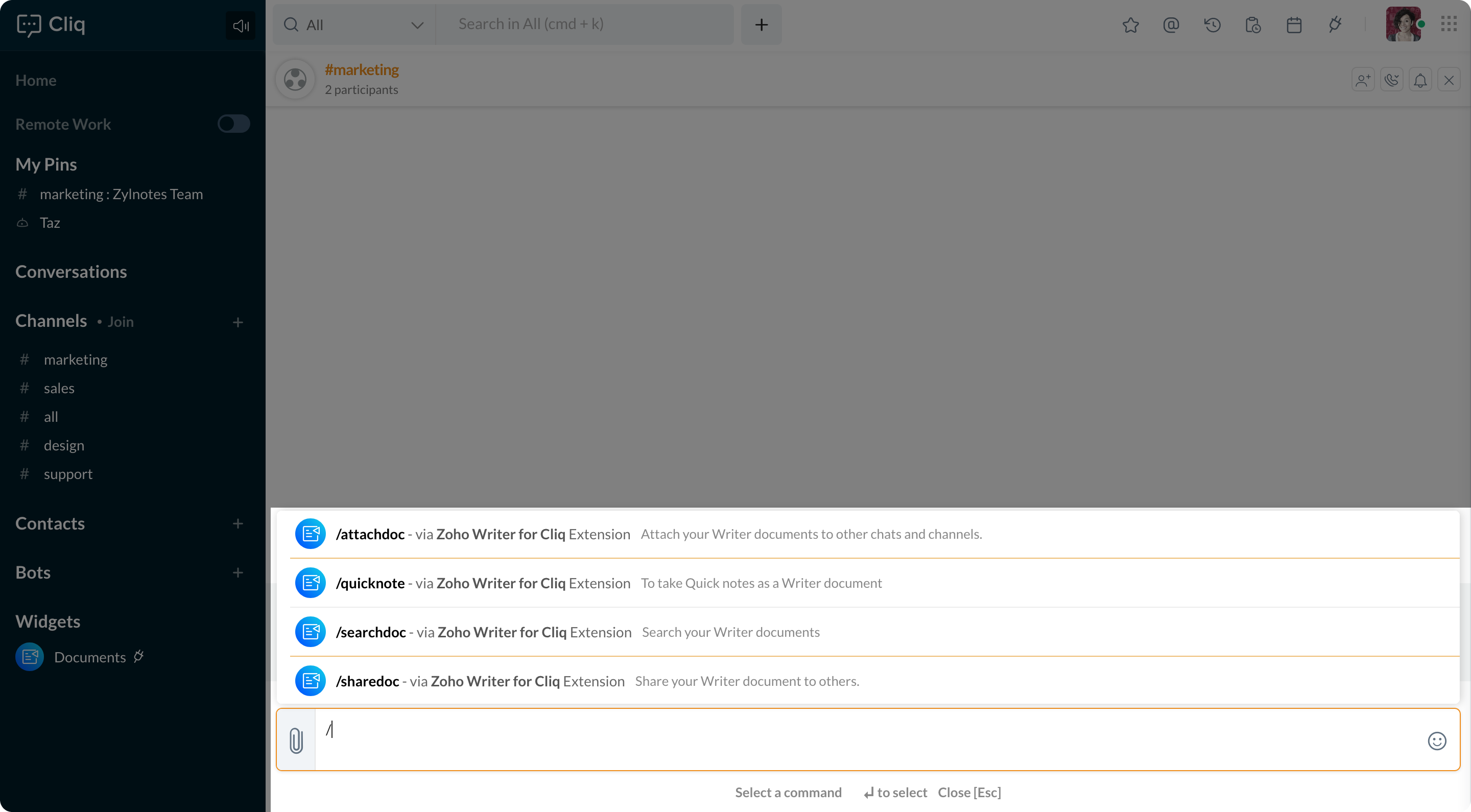
Commands shortcuts in Writer Integration for Cliq

The integration also comes with different command shortcuts to help you find and share documents directly in a chat, jot down ideas and save them in Writer or even convert a message into a document, and so much more.

Install Zoho Writer for Zoho Cliq today.

Just like all the other internal components of the Zoho Cliq Platform, Widgets are also powered by Deluge, Zoho’s own coding language. Widgets are also fully accessible via Cliq mobile apps without any additional effort. So, if you’re planning on building a Widget, head over to our developer documentation right away! You can also download the code for the Twitter and COVID-19 widget right over here.

Cliq bots as channel participants

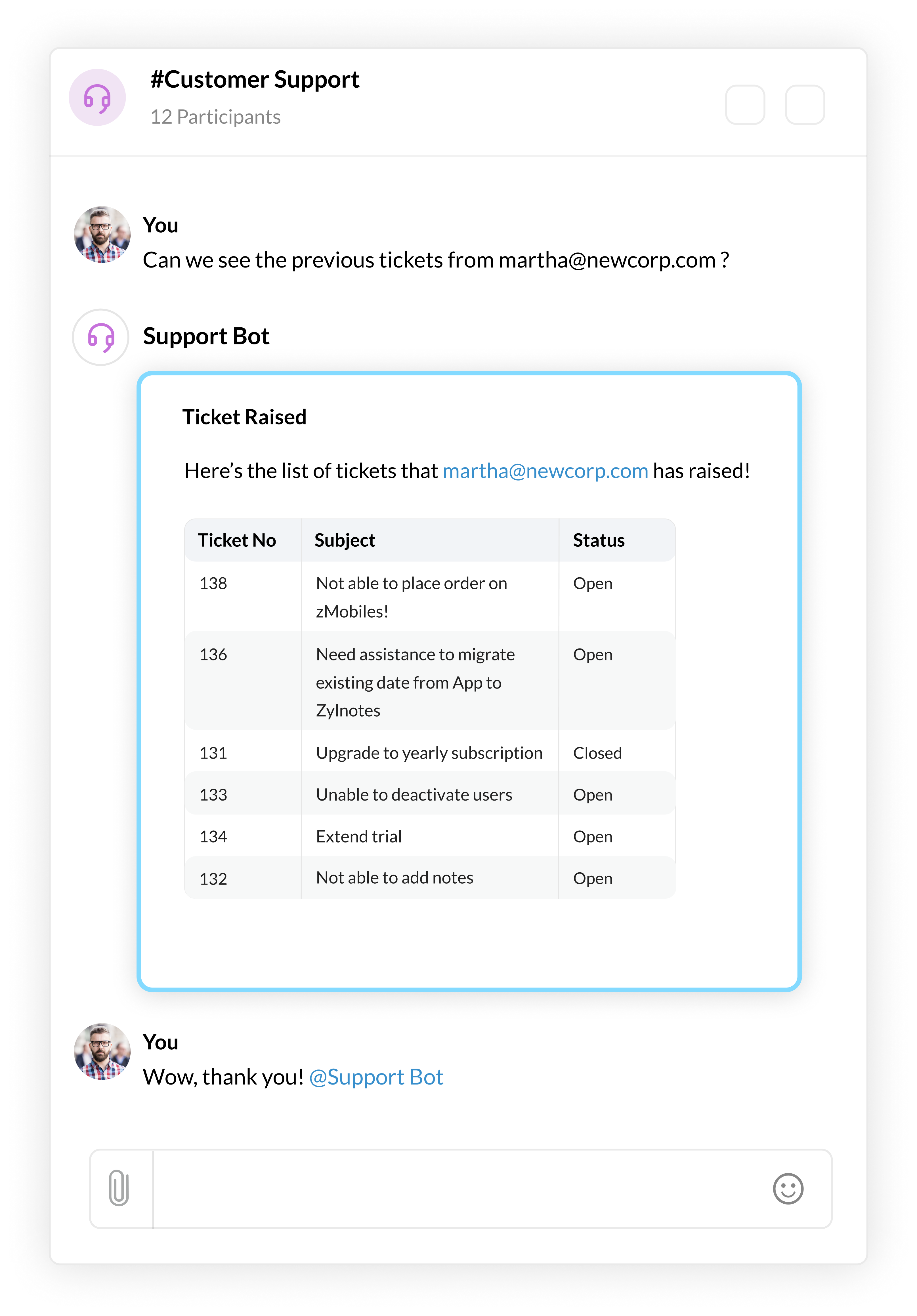
You can now add Cliq bots to your channels as participants. Bots in Cliq are helpful virtual assistants, following up on your work items, bringing you updates, and more. With bots as channel participants, they can go a step further and take care of all updates, follow-ups, and messages, making sure you don’t miss out on important information.

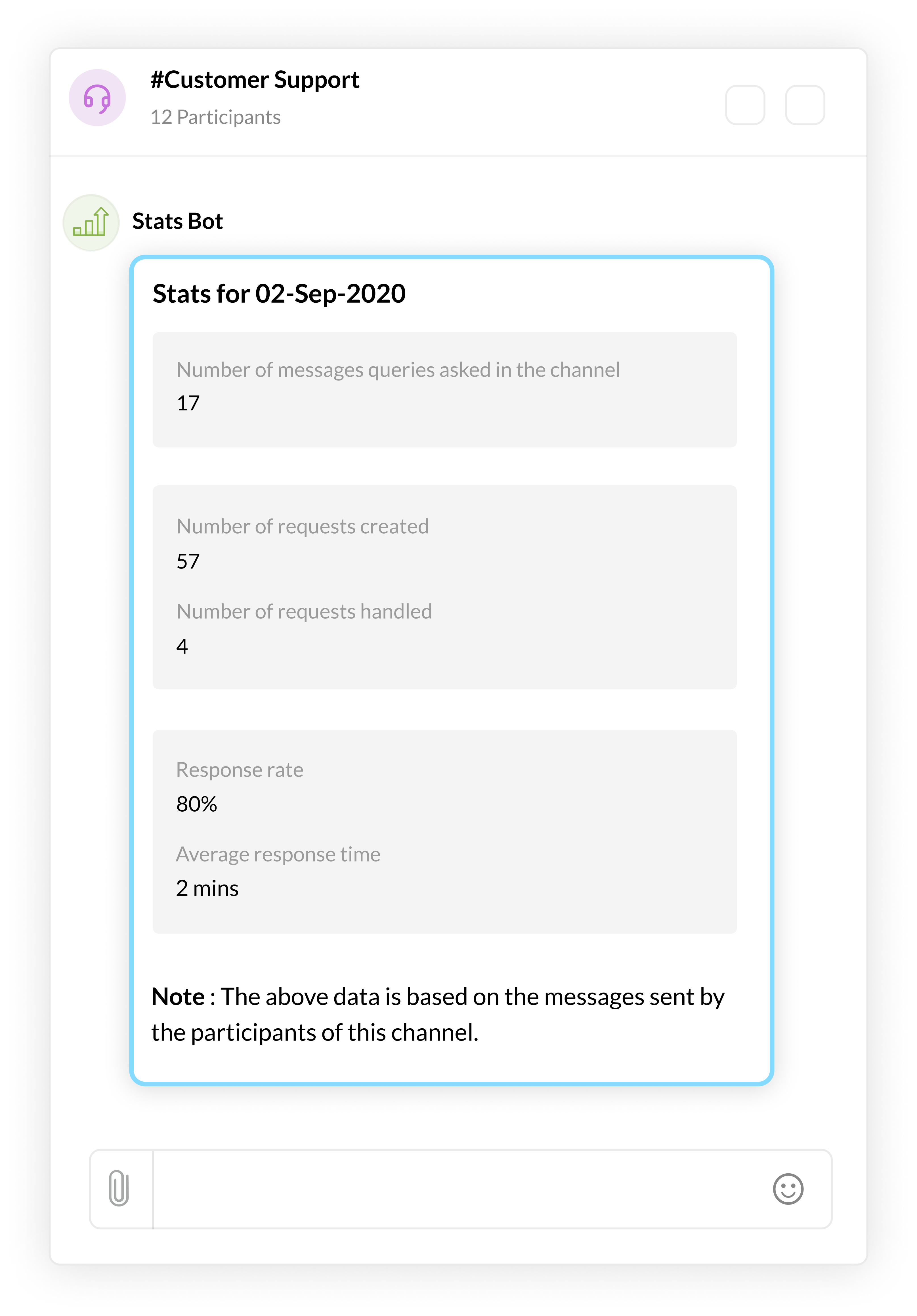
For instance, the Support Bot listens to messages being posted in the #internal-support channel and responds to employees with the information they’re looking for. The bot helps the internal support team by answering frequently asked questions and lets the team handle other important, immediate queries.

Add bots as participants

The bot also keeps track of the total number of internal queries being raised based on the messages posted in the channel, ensure that all queries are responded by the end of the day, and even calculate the total response time!

Stats bot notifying a channel

Telephony integration: Automatic status updates and context-driven suggestions

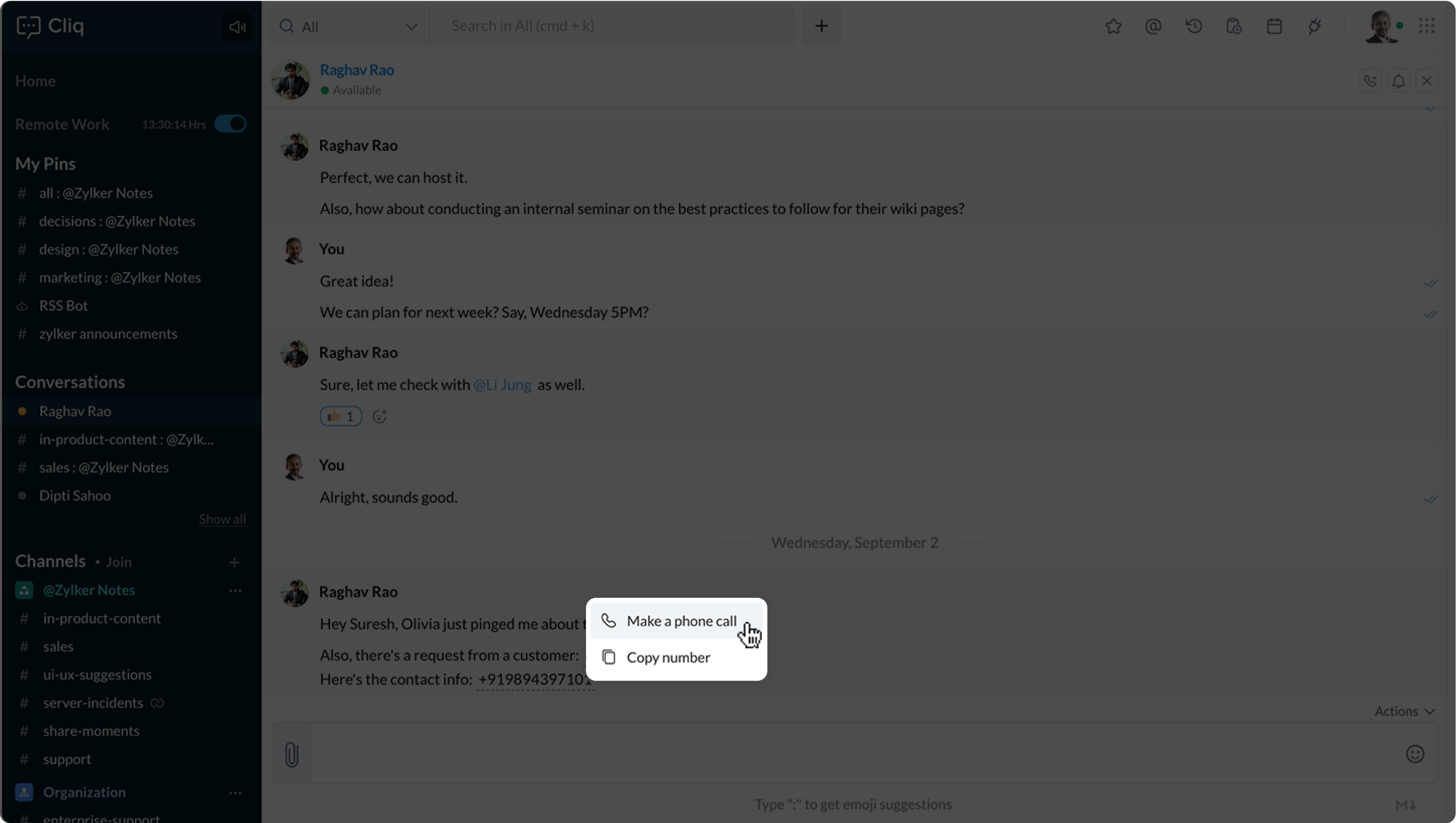
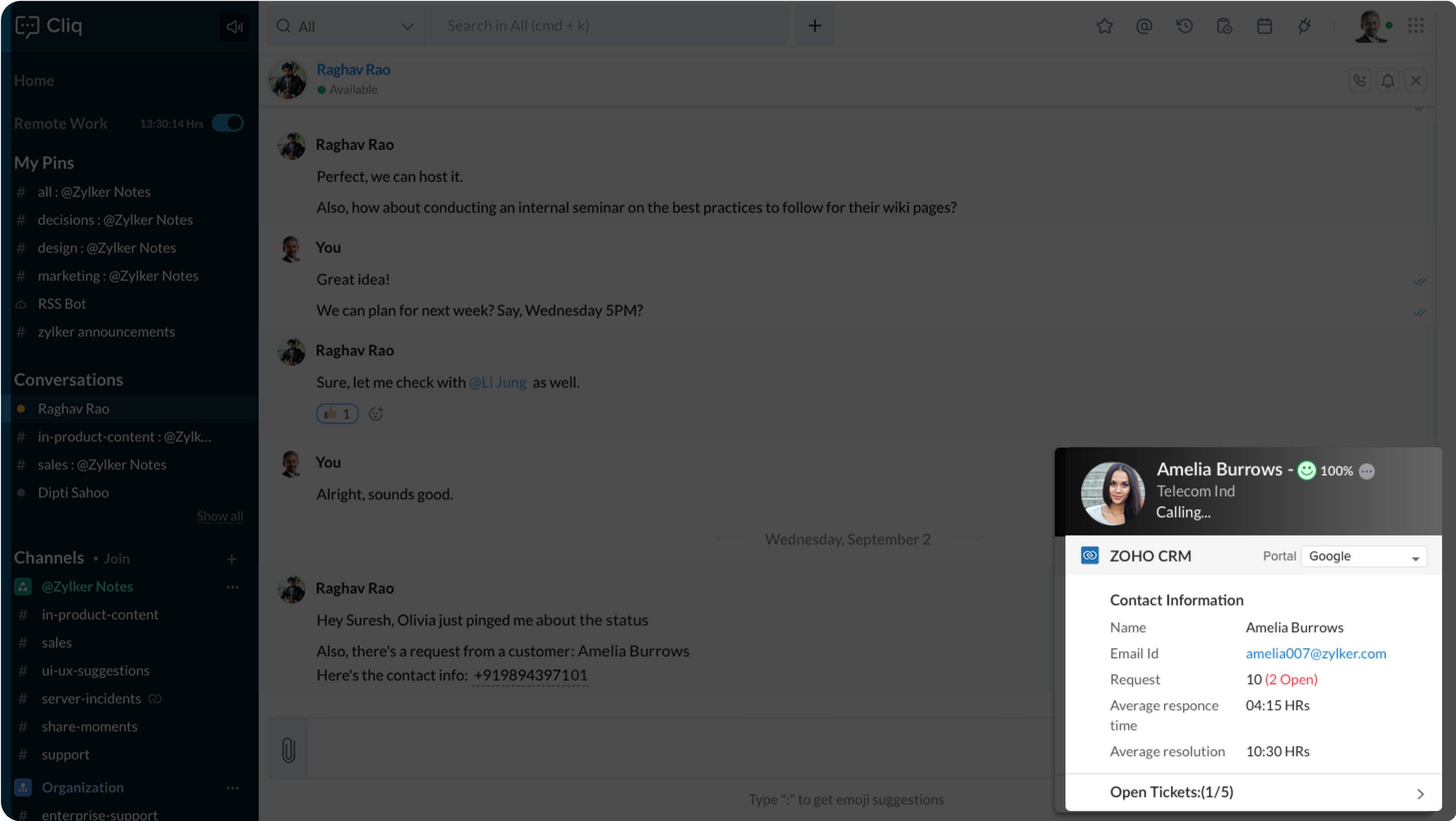
Cliq detects the context behind every conversation to suggest smart follow-up actions. For example, whenever there is a phone number that is shared on chat, a contextual suggestion powered by Cliq’s Telephony integration is listed right next to the text. All you’ve to do is, make sure Telephony is set up and enabled from the Zoho App of your choice (CRM, Bigin, Recruit, Zoho One) and you’ll be able to make an outbound call right from your chat window.

Contextual suggestions in Cliq

Cliq - Zoho Telephony Integration

The best part is, once the call gets connected, your Cliq status automatically reflects that you’re on a call.

Cliq Auto Status Updates

Note: This integration will be available only if you’re using a Unified Vendor supported across Zoho. Please refer to this link to find out vendors supported across Zoho.

Build webhook based extensions for Cliq

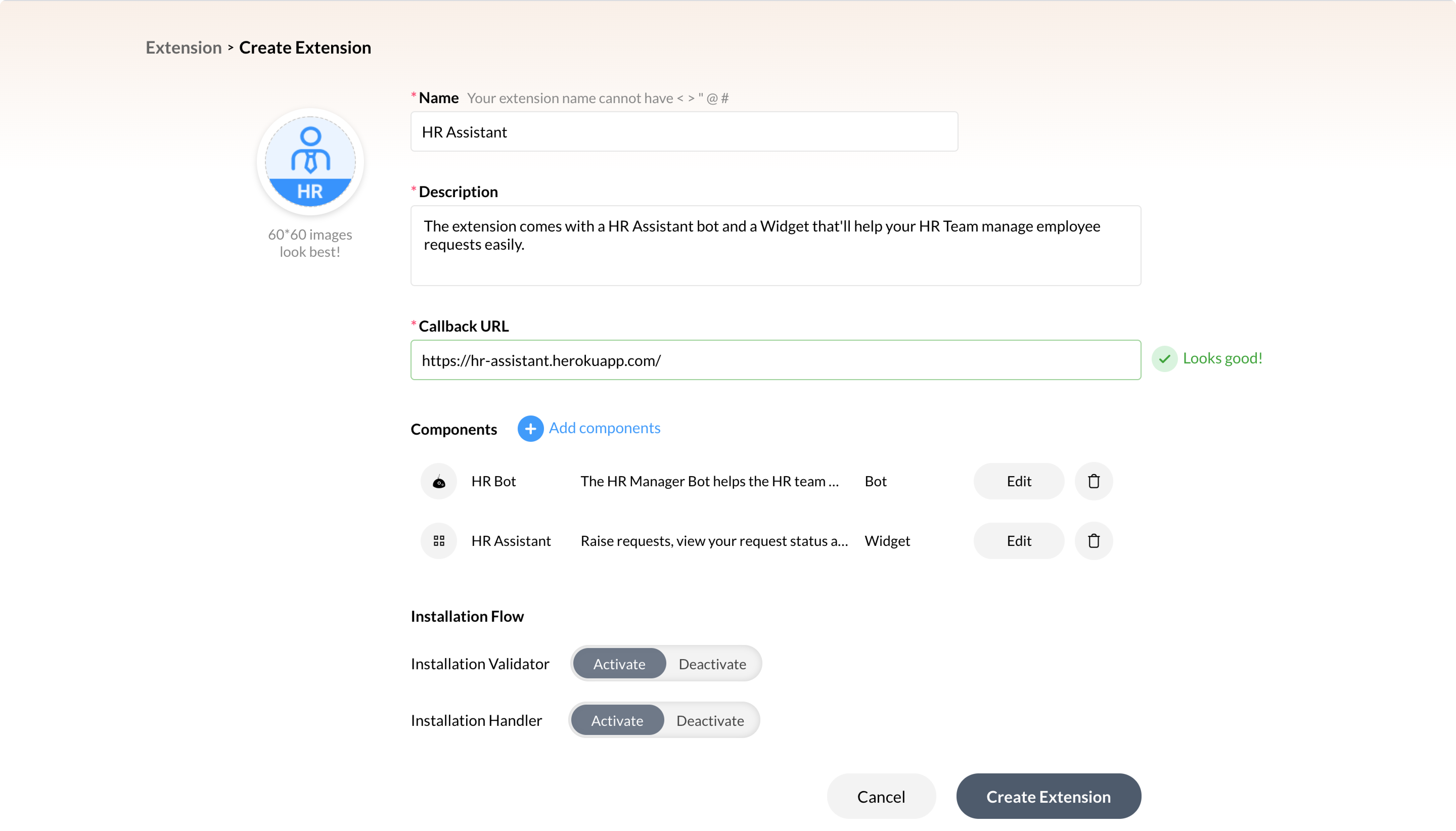
You can now create a webhook based extension for Cliq. The extension can be created by accessing Cliq’s developer console, and all you have to do is create the extension, choose the platform components you’d like to add to your extension and provide a call back URL for your server. Every time a user interacts with a component in your extension, a command, or a button or a bot, a HTTP POST request is made to your server and you’ll have to handle the request to return a suitable response.

Webhook based extension in Cliq

We hope you try out these new updates on the Zoho Cliq platform and get even more out of Cliq. Tell us about the custom tools and extensions that are making your team collaboration seamless in the comments below!

Net Universe offers all Zoho subscritpions and consultant services with worldwide Delivery Services.
Send us an email to [email protected] for more information or visit https://www.netuniversecorp.com/zoho.

#BeCyberSmart this National Cybersecurity Awareness Month

The National Cyber Security Alliance and the U.S. Department of Homeland Security launched National Cybersecurity Awareness Month in October 2004. Since then, the government and companies across all industries have been doing their part in educating employees, customers, partners, and other important stakeholders on the importance of online security. Some of the most popular campaigns include Our Shared Responsibility and Stop. Think. Connect. The theme for Cybersecurity Awareness Month 2020 is Do Your Part. #BeCyberSmart.

Zoho Vault - Cybersecurity

What’s special this year?

Today we all live in a well-connected world where our online and offline lives are intertwined. If we all do our part in protecting our cyberspace with strong security policies, community-level awareness, and periodic employee training, our tightly-connected world will be a safer and more resilient place for everyone both online and offline. The National Cyber Security Alliance is planning to focus on the following areas:

  • If you connect it, protect it

  • Securing devices at home and work

  • Secure internet-connected healthcare devices

  • The future of connected devices

If you connect it, protect it

We use a plethora of internet-connected devices in our everyday lives, both at home and at work. Some of the most popular devices include smartphones, laptops, voice-based assistants, smart locks, and doorbell cameras. We need to identify all of the internet-connected devices we use, analyze their impact on our security, and take steps to reduce the risks.

Securing devices at home and work

With this year’s rapid adoption of the work-from-home model, our homes and business environments are colliding with each other. Some common problematic scenarios include personal devices being used for work, public Wi-Fi networks, data leakage, social engineering attacks, SIM swap frauds, poor password hygiene, and kids using office devices, but there are a lot more. We need simple and effective best practices for work-from-home security defined by companies operating in this particular space to educate employees and their families.

Securing internet-connected healthcare devices

The medical and healthcare industry has been disrupted by technological innovations like wearable health monitoring devices, fitness apps, virtual reality, telemedicine, and 3D printing. Both government agencies and private parties are operating with access to individuals’ personal healthcare data, which encourages cybercriminals to attempt breaches. Most of us are unaware of the risks related to exposing our personal healthcare information, but there are some simple ways we can be safer, including:

  • Accept the free medical services only after reading their privacy policy

  • Verifying that our digital healthcare records are accurate

  • Storing and managing medical records securely

  • Reporting possible fraud immediately to the appropriate helpline

The future of connected devices

By 2030, experts predict that each person will own 15 connected devices. We are already considering possibilities such as 5G, self-driving cars, smart cities, extended reality, and artificial intelligence. All of these technological advancements mean an increased attack surface for cybercriminals. We need to empower ourselves to secure our data and the online world.

How can you participate?

If you would like to make a difference during Cybersecurity Awareness Month, you can try the following at home, at work, and in your community:

  • Post online security tips and reminders on your social networks with the #BeCyberSmart hashtag. The National Cybersecurity Alliance offers some sample social media posts and graphics.

  • Write your own blog around the topic If you connect it, protect it.

  • Promote Cyber Security Awareness Month in your emails and newsletters

  • Host free training and educational sessions

  • Create and promote educational resources on online security

  • Define and enforce security policies

Take the first step. Join the National Cybersecurity Alliance this year to promote online safety, and follow them on Twitter to keep yourself updated. We are also planning to share tips and best practices for staying safe online to support the movement and do our part.


Chandramouli Dorai


Chandramouli Dorai is the Marketing Analyst for Zoho Vault and Zoho Sign. You can start a conversation with him by simply leaving a comment on any of his blog posts.

Net Universe offers all Zoho subscritpions and consultant services with worldwide Delivery Services.
Send us an email to [email protected] for more information or visit https://www.netuniversecorp.com/zoho.

Zap your way to building better customer relationships: Announcing Bigin’s integration with Zapier

When we posted our last blog, we left you with the promise that we would add more apps to our existing line-up of integrations. Now, we are back with not one but 2000+ ways to connect Bigin with your favorite business applications. Yes, we are excited to announce that Bigin is now fully integrated with Zapier, the leading integration platform that lets you connect your apps and automate your workflows. Thanks to the growing popularity of the integration, we are now out of the beta phase and are ready to fully integrate with the Zapier platform to help users do more with less work.

Bigin by Zoho CRM - Zapier Integration

Zapier is all about making automation easier and it strives to keep its users productive so that they don’t have to spend their valuable time connecting different apps to work together. It eliminates double entries from your work and automates the regular day-to-day tasks that you often find yourself spending the most time on.

How does the integration work?

While a CRM system is at the core of your day-to-day customer-centric operations, you still need to connect it with other apps that are part of your business ecosystem. The secret to building better customer relationships is having an integrated platform that maps the end-to-end journey of a customer so that it becomes easier for the stakeholders to track and manage customer activities at every step of the customer journey.

From capturing incoming leads from multiple channels to automatically alerting your team of deal closures, every action needs to be tied together for customer-facing teams to provide a coherent experience to their customers. That’s where an integration platform like Zapier can help by effortlessly combining the CRM system with other third-party apps without any coding or API integration involved. This also means that customer-facing teams can build their own processes much faster and no longer have to wait for developer help to automate some of their core activities.

Don’t know where to start? Take a look at some of our prebuilt Zaps.

Add new contacts from Bigin as customers in QuickBooks Online

If QuickBooks is your go-to accounting solution, you can now automatically send invoices or estimates to your customers by syncing your new Bigin contacts. Here’s a Zap that bridges the gap between your sales and finance teams.

Add new companies in Bigin as records in Salesforce.

You might often find yourself needing a more powerful CRM solution like Salesforce for your core sales operations and a simpler CRM solution like Bigin that’s designed for sales reps. With this Zap, you can ensure that all your Bigin entries like new company information are always synced to your main CRM application without needing to enter them again manually.

Send Slack channel messages for new deals in Bigin.

I’m sure you would agree that teamwork is the key to closing every successful deal. How about keeping your team abreast of every incoming deal in Bigin? That’s what this Zap does. It simply creates a new channel in Slack and notifies your team whenever a new deal is created in Bigin.

Add new leads in Facebook Lead Ads as contacts in Bigin.

Many small businesses rely on Facebook Lead Ads as their primary source for new leads and bringing those leads safely into their CRM system is crucially important to them. We’ve got a Zap that does exactly that. Now, you can automatically import your leads from Facebook Lead Ads to your CRM, follow up, and convert them much faster.

Create Trello cards from new tasks in Bigin.

Trello is a popular list-making application that helps individuals and teams organize and prioritize tasks with ease. With Zapier, you can now quickly create a Trello card for every new task that is assigned to you in Bigin.

Here’s a complete list of all our prebuilt Zaps.

Like we always say, #JustBigin!

What we just showed you is a glimpse of what you can achieve with this integration and it certainly does not end here. You can pick and choose any of your favorite apps on the Zapier platform and create a Zap to automate your process in minutes.

Head over to the integrations page to get started with your first Zap and tell us how it worked for you. You can also write to us at support[at]bigin[dot]com and let us know your preferred Zap templates so that we can create one for you as soon as we can.

Don’t forget to follow us on Twitter and LinkedIn where we post about our recent product updates and announcements. We’d love to have you there.

Happy automating!


Yatheesh Raj


Product Marketing @ZohoCRM. You can start a conversation with me by simply leaving a comment on any of my blog posts or tweeting out to @yatheeshraj.

Net Universe offers all Zoho subscritpions and consultant services with worldwide Delivery Services.
Send us an email to [email protected] for more information or visit https://www.netuniversecorp.com/zoho.

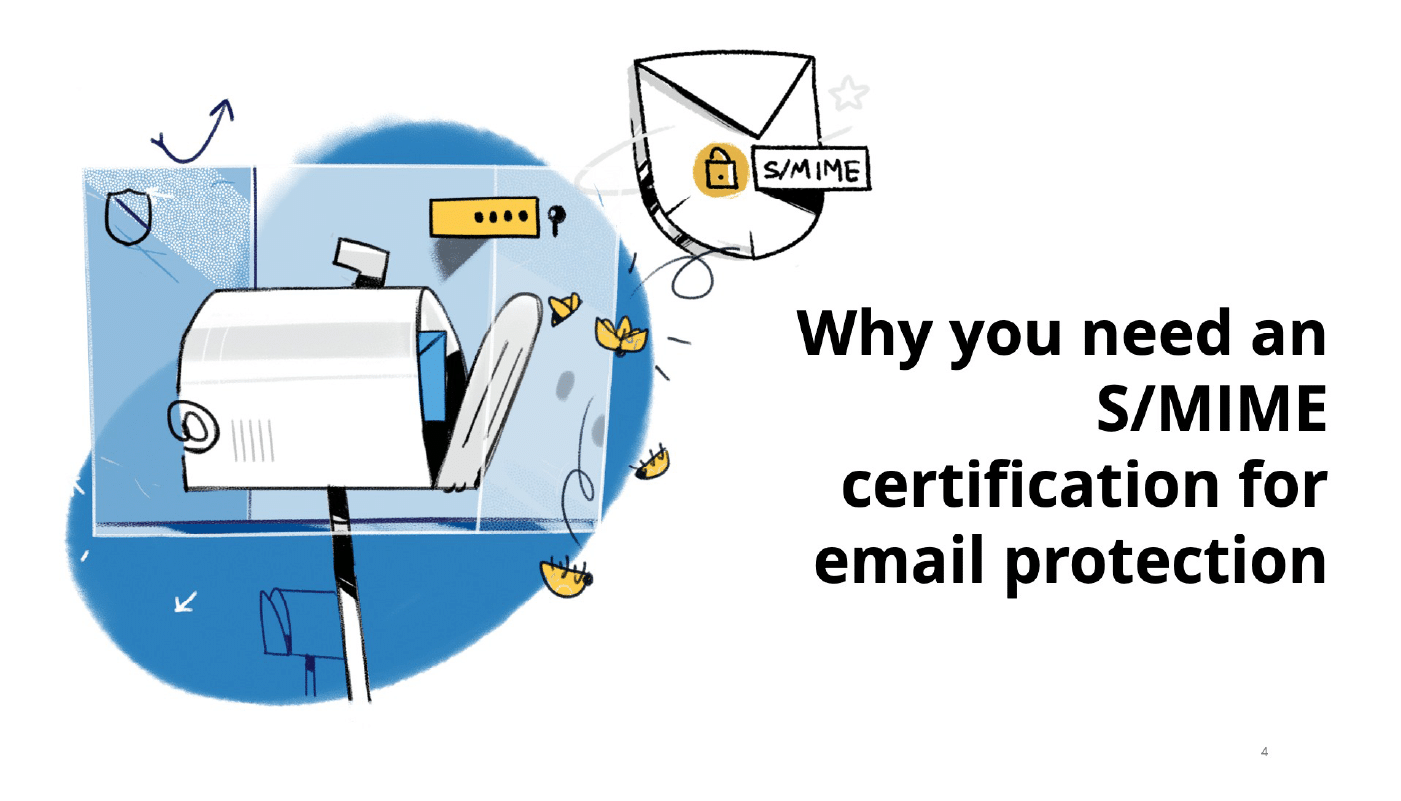
S/MIME certification: Why you need it for email protection

These days, hacking is more of an omnipresent threat than ever before. But rather than popup ads being the primary source of malware and digital malfeasance, your email account is now the most likely place you’ll encounter a computer virus or hacking attempt.

Even if you use antivirus software, your emails may not be as secure as you think. The conversations or information you put in them could put you at risk if they aren’t properly certified and encrypted.

S-MIME for email protectionWhat is S/MIME certification?

S/MIME (which stands for “secure multipurpose internet mail extension”) certification is a type of digital email signing protocol that combines encryption and time-stamped digital signatures. It’s somewhat similar to SSL certification–which you know more commonly as web addresses that begin with HTTPS instead of HTTP.

This encrypts traffic data to ensure that information on a website or server isn’t easily accessed by the public or a would-be hacker.

Although far too few people know what S/MIME certification even is, it’s crucial for both personal and business security. Educating yourself and your co-workers about S/MIME encryption is important for gaining an edge over industry competitors as well.


How does S/MIME work to protect emails?

Although it’s not as intuitive a concept as a spam filter, S/MIME certification is really quite simple when you boil down its processes:

  • To start, the S/MIME protocol generates a unique digital signature by combining a private key that is attached to your IP address/username/profile with a public key
  • The public key is sent with any email protected by S/MIME certification
  • When you or someone else receives an S/MIME-certified email, the recipient can use their private key to decrypt the publicly encrypted message.
  • In using a private key to decrypt or encrypt a message, the message sender or receiver uses their unique digital signature and ensures message integrity or trustworthiness

It all sounds a little technical, but the encryption process works because the public key can be accessed by a multitude of similar private keys that are nonetheless secure and very difficult to crack with brute force.

Your emails are kept secure since the encryption encodes the data inside the email (such as pictures and text) and only decrypts it when it reaches its target recipient. When emails are S/MIME certified in this manner, it helps to guard against phishing attacks, malware, social engineering hacks, and other email-related threats.

How do you use S/MIME certification?

In past years, S/MIME certification was only used by the few internet geeks who bothered learning the ins and outs of this type of encryption. But these days, S/MIME certification is included by default in most major desktop and mobile email platforms or clients.

In other words, you may not need to take any extra steps to benefit from S/MIME certification. Your provider is likely already using it to encrypt your emails and protect you from malware!

But if you use a special email client or platform for your business, or use another third-party company for your email communications, you should look into implementing S/MIME certification ASAP. You can install S/MIME certificates on every device individually by either hiring an IT company or assigning the task to your own IT department. Other S/MIME certification products and software can deliver S/MIME certificates to all the machines in your network for a fee.

Why S/MIME certification helps you individually

You and others can trust email communications

At its core, S/MIME certification creates a kind of trust you can’t easily get elsewhere in the digital world. In the days of handwritten letters or documents, you could easily tell whether a letter was genuine or a forgery based on a style of handwriting or a particular turn of phrase. This was also true for any letters you sent to other people or to important organizations, like the bank.

S/MIME certification serves the same basic purpose. As a kind of digital signature, this type of certification means you can trust that encrypted emails you receive really did come from the person marked on your screen. It helps others trust any emails you send out, as well.

It offers protection from malware

Did you know that about 92% of all malware is delivered by email? In short, if you’re ever going to be threatened by a malware attack, it’ll more than likely be from an email you receive and inadvertently open.

The trouble with protecting against this kind of attack is that it’s trivially easy for any second-rate hacker to make an adjustment to PHP code. They can craft an email containing a virus that looks like it’s coming from a legitimate sender. Thus, you can’t always trust your eyes or intuition to identify a malware-carrying email.

S/MIME certification goes a long way toward ensuring you don’t open any bad emails. If you rely on encrypted communications as much as possible, you’ll be much safer from malware attacks.

Your confidential information will stay protected

Identity theft is not a joke, and it happens to millions of Americans every year. It’s become even easier for hackers to get personal information since we voluntarily surrender it online all the time. When we sign up for services or purchase products from online marketplaces, we put our credit card information and other sensitive info out on the web for the taking.

The most secure email services available come with S/MIME encryption in addition to two-factor authentication, digital signatures, and built-in VPNs. These measures help ensure that in the event you ever accidentally include sensitive information in an email, such information can’t be retrieved by hackers.

How S/MIME certification can help your business

S/MIME certification is great for individual protection, but it also provides specific benefits for businesses.

S/MIME certification defends against business espionage/hacking

Many businesses in cutthroat industries have to be aware of potential business espionage or information gathering. IT and enterprise-level security are huge fields that are growing more complex and difficult to defend capably every year.

S/MIME certification is an easy way to lock down your company’s emails. This is especially important since employees, even in major industries such as the medical industry, often accidentally or innocently open spam or phishing emails and open their networks to attack.

S/MIME certification ensures compliance with privacy rules

Businesses’ compliance with consumer privacy laws is more important than ever, especially in light of legislation like the GDPR, which protects consumer data in Europe. Encrypting emails for your business will ensure that you don’t accidentally fall out of compliance with laws like the GDPR and compromise the sensitive information for your customers.

Having a digitally vulnerable business is bad not only for the legal ramifications, but also for the trustworthiness of your company at large. No one will want to shop at your online business if they think their information is at risk when they place an order!

Conclusion

All in all, S/MIME certification should be considered a requirement for both individuals and companies in this day and age. Consider swapping to an S/MIME-certified email platform if you haven’t already–there’s no replacement for good email security.


Author bio: Gary Stevens

Gary Stevens is the CTO of Hosting Canada, a website that provides expert reviews on hosting services and helps readers build online businesses and blogs.

Net Universe offers all Zoho subscritpions and consultant services with worldwide Delivery Services.
Send us an email to [email protected] for more information or visit https://www.netuniversecorp.com/zoho.
Notebook update: Share notes with peers

We’re pleased to announce the most requested Notebook update yet. Now, you can share your thoughts with your coworkers and friends. No further need to send your notes through messages, email, or other means. With a Zoho Notebook account, you can securely share your notes with anyone in a single click.

Directly share your notes

You can now share notes with Notebook users who have registered accounts with Zoho—you just need to know the email address or mobile number associated with their account.

Here’s how to share a note:

 1. Open a note.

2. Click on the “Add User” icon placed on the action tool bar.

3. Click “Add Members.”

4. Enter the email address or mobile number of users you want to share the note with.

5. Select the user from the suggestion list or press “Enter.”

6. Click “Share.”

7. An email will be sent to selected users with a link to open the note.

Where to view the notes shared with you

Once a note is shared directly with you, you’ll receive an email or a message from the sender. Your Notebook mobile app will receive push notifications when notes are shared with you.

To view all notes shared with you in Notebook:

1. Open the Notebook app.

2. Tap “Shared with me” to view all notes shared to you.

3. Open a note and tap on the user icon to see who shared the note with you.

4. Overall search results in Notebook will also include notes shared with you.

Unshare notes shared with you

You can unshare a note if you do not wish to view it under “Shared with me.” Open the note shared with you, tap Menu, and then tap Unshare. If you open that note again using the shared note link, it will appear once more under “Shared with me.”

You can also remove users from the notes you’ve shared with others. Open the note, go to “Add User’, and click Delete from the user you would like to remove.

Share notes with your organization

If you are a part of an organization, you can now share your notes with all users in the organization at once. Simply select “Share with Organization” to share your note with everyone, rather than manually sharing with individual separately. Users in your organization will be able to see the note using the note URL.

Block users

You can choose not to receive any notes from others. You can block selected users when they first share a note with you. Once you’ve blocked a user, they will not be able to share any notes with you.

To block sharing from another user, open the shared note from that user, click the user icon, and then click Block Contact. This will unshare that note and ensure you don’t receive notes from that user in the future.

What can you do with notes shared with you?

When you receive a note from others, you can mark that note as a favorite and/or add a reminder to that note. These properties will be visible only for you and not for any other users with access to that note.

Limits to note

You always share a note in “read-only” mode. You can share a note with up to 50 users. You can share up to 50 notes with your organization. You can share up to 500 notes privately. You can receive a maximum of 250 notes.

We hope you find this update useful! Share your notes with your friends and colleagues to stay connected. As we mentioned before, we’re also working to add more capabilities to Notebook like edit shared notes, set permissions to shared notes, and more. Keep an eye out here for those updates!

Net Universe offers all Zoho subscritpions and consultant services with worldwide Delivery Services.
Send us an email to [email protected] for more information or visit https://www.netuniversecorp.com/zoho.